Scene Workflow
Scenes are where you turn your outline into prose. Each scene combines beats, synopsis, and metadata to keep your draft structured.
Rolling Outline Mode
Section titled “Rolling Outline Mode”Every chapter and scene in Kindling has a planning status that controls how much structure it shows. This lets you work at different levels of detail across your manuscript simultaneously.
| Status | Meaning | Sidebar view |
|---|---|---|
| 🟢 Fixed | Full beats, references, and discovery notes | Full outline with filters and drag-and-drop |
| 🟡 Flexible | Title + synopsis only — beats hidden until you need them | Simplified title-only scene list |
| ⚪ Undefined | A placeholder — you know this scene exists but haven’t planned it yet | Placeholder row |
Promote scenes progressively as your story takes shape: Undefined → Flexible → Fixed. Change status from the scene’s right-click context menu.
This is designed for pantsers and plantsers who want to capture the shape of their story without committing to full outlines upfront.
Scene Panel Layout
Section titled “Scene Panel Layout”When you open a scene, the Scene panel shows its beats, synopsis, and metadata controls in one place.
Beats and Prose
Section titled “Beats and Prose”- Beats are collapsible cards that act as writing prompts
- Expand a beat to write prose directly beneath it
- Prose auto-saves as you write
- Collapse a beat to keep the outline visible while you draft
The key idea: you never face a blank page. Your beats are right there, guiding what you write next. Draft one beat at a time, or expand them all and write in a continuous flow — it’s up to you.
Beat Density Indicator
Section titled “Beat Density Indicator”Each scene in the sidebar shows a beat density indicator — a visual gauge that lets you see at a glance how detailed your planning is relative to other scenes. Useful when you want to identify underdeveloped scenes before you start drafting.
Full-Page Prose Editing
Section titled “Full-Page Prose Editing”In addition to beat-by-beat drafting, you can switch to a full-page prose editor per scene. This gives you an uninterrupted writing surface while still keeping your beats available to reference in the panel alongside.
Toggle between beat view and page view from the scene toolbar.
Synopsis Editing
Section titled “Synopsis Editing”Use the synopsis field to capture a short summary for the scene. Synopses can be edited inline and save automatically. Synopses are included in DOCX and EPUB exports if you choose to include them.
Scene Type and Status
Section titled “Scene Type and Status”Scene metadata helps you filter and organize your outline:
| Field | Options | Purpose |
|---|---|---|
| Type | Normal, Notes, ToDo, Unused | Categorise scenes; Notes/ToDo/Unused are filtered in some exports |
| Status | Draft, Revised, Final | Track writing progress per scene |
These controls appear in the sidebar scene list as colour indicators and are used when filtering and exporting.
Scene Locking
Section titled “Scene Locking”Locked scenes (or scenes inside locked chapters) are read-only. Locking is useful when a scene is finished and you don’t want to accidentally change it.
- Lock a scene from the right-click context menu or scene toolbar
- Unlock it the same way to resume editing
- Locked scenes are skipped during Sync & Reimport
Beat Management
Section titled “Beat Management”Right-click a beat to access beat actions:
- Split — Divide a long beat into two
- Merge — Combine two adjacent beats into one
- Reorder — Drag beats to change their order
- Delete — Remove a beat (prose inside is also deleted)
Discovery Notes
Section titled “Discovery Notes”If you think of something while writing — a subplot idea, a continuity fix, a scene that needs to happen later — use an inline discovery note to capture it without breaking your flow. Press Cmd+D / Ctrl+D to add a discovery note to the current scene. Notes persist across sessions and can be promoted to full beats when you’re ready.
Discovery notes sit outside your beats and don’t affect export output.
Templates
Section titled “Templates”When creating a new project, Kindling can pre-populate your outline with a story structure template. Templates create placeholder chapters and scenes with the appropriate beat scaffolding — you can customise or delete anything they generate.
Beat sheet templates:
| Template | Structure |
|---|---|
| Save the Cat | 15 beats across 3 acts following Blake Snyder’s beat sheet (Opening Image, Theme Stated, Set-Up, Catalyst, Debate, Break into Two…) |
| Hero’s Journey | 12 stages based on Joseph Campbell’s monomyth (Ordinary World, Call to Adventure, Refusal, Meeting the Mentor…) |
| Three-Act Structure | Classic dramatic structure — Setup, Confrontation, Resolution — with scene placeholder beats at key turning points |
Novel structure templates:
| Template | Structure |
|---|---|
| Seven-Point Story Structure | Dan Wells’s seven points: Hook, Plot Turn 1, Pinch Point 1, Midpoint, Pinch Point 2, Plot Turn 2, Resolution |
| Snowflake Method | Randy Ingermanson’s approach — starts with a one-sentence premise and expands outward to chapters and scenes |
| Story Grid | Shawn Coyne’s framework — scenes mapped to the five commandments (Inciting Incident, Progressive Complication, Crisis, Climax, Resolution) |
Screenplay Projects
Section titled “Screenplay Projects”When you create a new project, you can choose Screenplay as the project type. Screenplay projects add:
- Slugline input — Scenes include an INT./EXT. slugline field
- Page count estimator — Based on the standard 250 words per page
- Treatment export — Generate a 1-page or 5-page treatment document (DOCX) from your synopses
Screenplay projects otherwise work identically to novel projects — beats, references, and export all function the same way.
Command Palette
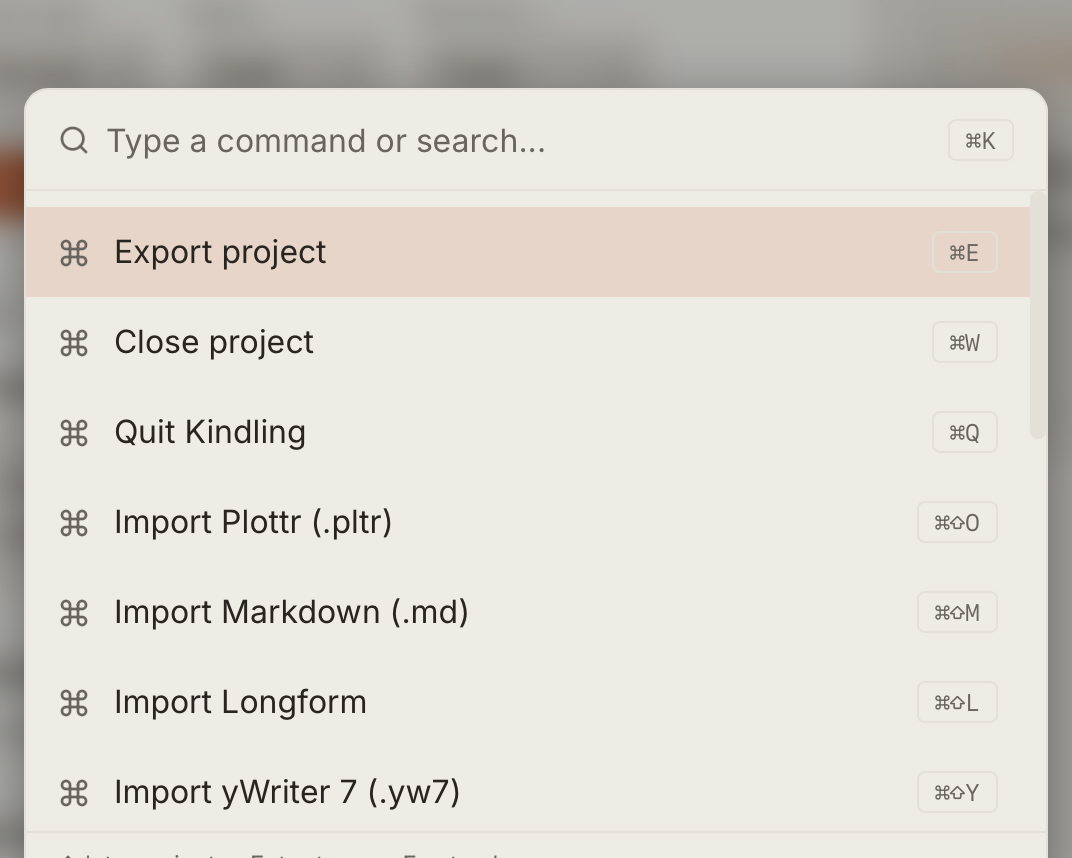
Section titled “Command Palette”Press Cmd+K / Ctrl+K to open the command palette from anywhere in the app. Fuzzy search across all available actions — import, export, settings, navigation, and more. Use arrow keys to navigate, Enter to execute.