
Getting Started with kindling
Welcome to kindling! This guide will help you get started.
What is kindling?
Section titled “What is kindling?”kindling is a free, open-source desktop writing app that keeps your outline visible while you draft. It’s built for fiction writers who plan — plotters, pantsers, and anyone who wants structure without losing creative flow.
Whether you outline every beat before you write, discover your story as you go, or land somewhere in between, kindling adapts to your process.
Quick Start
Section titled “Quick Start”Starting from an existing outline:
- Download kindling for your platform
- Install and open the app
- Import your outline from Plottr, yWriter, Scrivener, Markdown, Longform/Obsidian, or novelWriter
- Choose a scene — your beats appear as writing prompts
- Start writing!
Starting from scratch:
- Download kindling for your platform
- Install and open the app
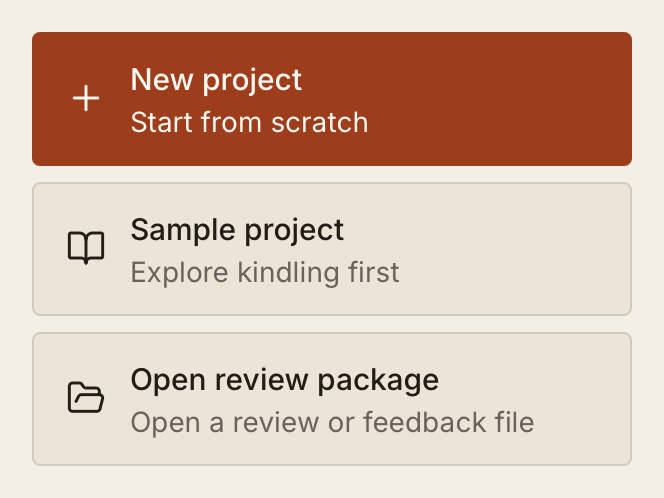
- Choose File → New Project (or press
Cmd+N/Ctrl+N) - Add chapters and scenes directly in kindling
- Start writing!
Opening an editorial package: Choose Open Review Package on the start screen to open a .kindling-review or returned .kindling-feedback file. Follow the Editorial Review guide for the next steps.
Key Concepts
Section titled “Key Concepts”Beats are the building blocks of a scene — short prompts that guide what you write next. You can draft inside each beat or switch to a full-page prose view for uninterrupted writing.
Rolling Outline lets each chapter and scene have its own level of structure — from fully planned beats to a simple title placeholder. You decide how much detail to add and when.
References track characters, locations, items, and other story elements alongside your scenes.
Getting Around
Section titled “Getting Around”The shortcuts below are defaults. Customize them in Settings; menus and shortcut hints show your current bindings.
| Shortcut | Action |
|---|---|
Cmd+N / Ctrl+N | New project |
Cmd+K / Ctrl+K | Command palette |
Cmd+, / Ctrl+, | Settings |
Cmd+O / Ctrl+O | Open review or feedback file |
Cmd+D / Ctrl+D | Inline discovery note |
Cmd+Shift+H / Ctrl+Shift+H | Quick Start guide |
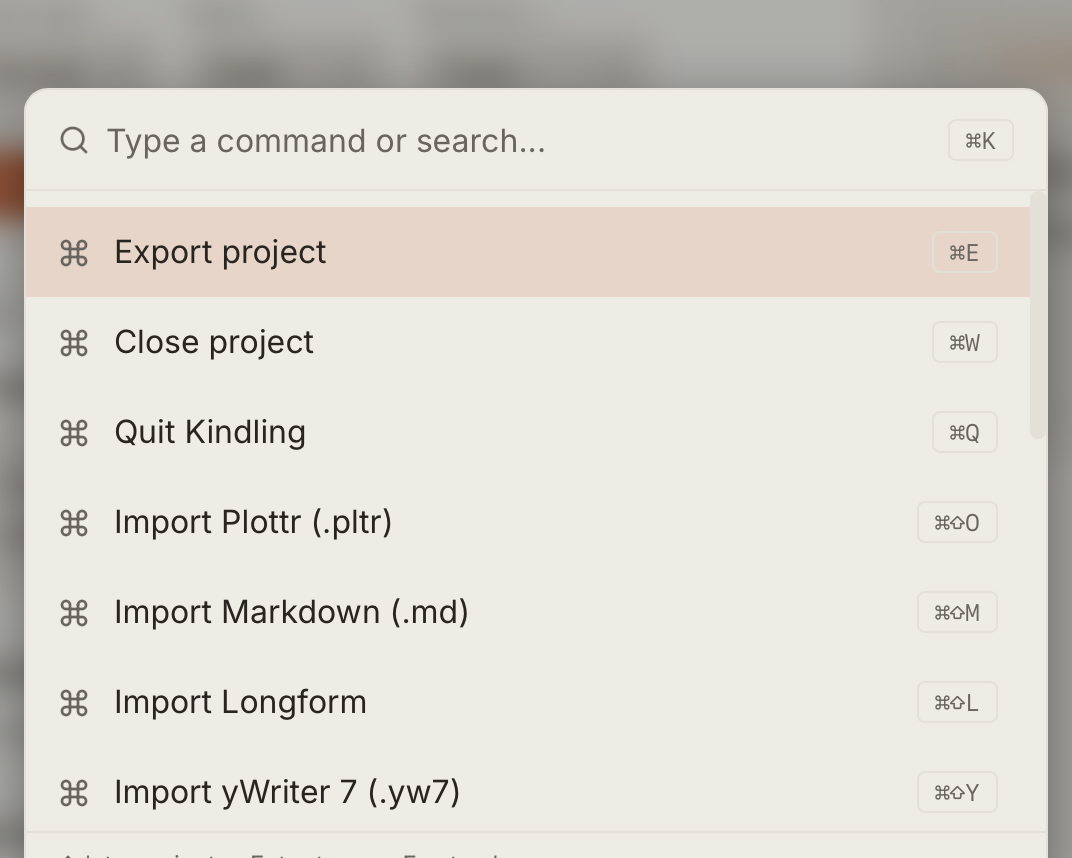
Press Cmd+K / Ctrl+K by default to open the command palette — fuzzy search across actions including import, export, navigation, and settings.
Themes
Section titled “Themes”kindling supports light, dark, and system themes. Change your theme from Settings → Appearance & Guidance. System mode follows your operating system’s preference.
Auto-Updates
Section titled “Auto-Updates”kindling checks for updates automatically on launch. When a new version is available, it downloads silently in the background and shows a non-blocking banner at the bottom of the window. Click Restart to apply the update.
Next Steps
Section titled “Next Steps”- Installation — Platform-specific install notes
- Importing Projects — Import from Plottr, yWriter, Scrivener, Markdown, Longform/Obsidian, or novelWriter
- Scene Workflow — Beats, prose, and scene structure
- Writing Goals & Statistics — Daily goals, session totals, and streaks
- Editorial Review — Review a manuscript and exchange feedback
- References — Characters, locations, and story elements
- Exporting Projects — Export to DOCX, Scrivener, Markdown, or EPUB
- Export Workspace — Customize exports with saved profiles and live previews
- Sync & Reimport — Keep source-backed projects up to date
- Settings — Shortcuts, themes, author info, and project preferences