
Editorial Review
Send your manuscript to an editor as a file and bring their feedback back into kindling. Both people use the app. No account or internet connection is needed for the review itself; you choose how to share the files.
Send a manuscript
Section titled “Send a manuscript”- Open your project and choose File → Editorial Review.
- Name the round, add an optional brief, and choose the whole manuscript or selected chapters.
- Choose Export review package and share the
.kindling-reviewfile with your editor.
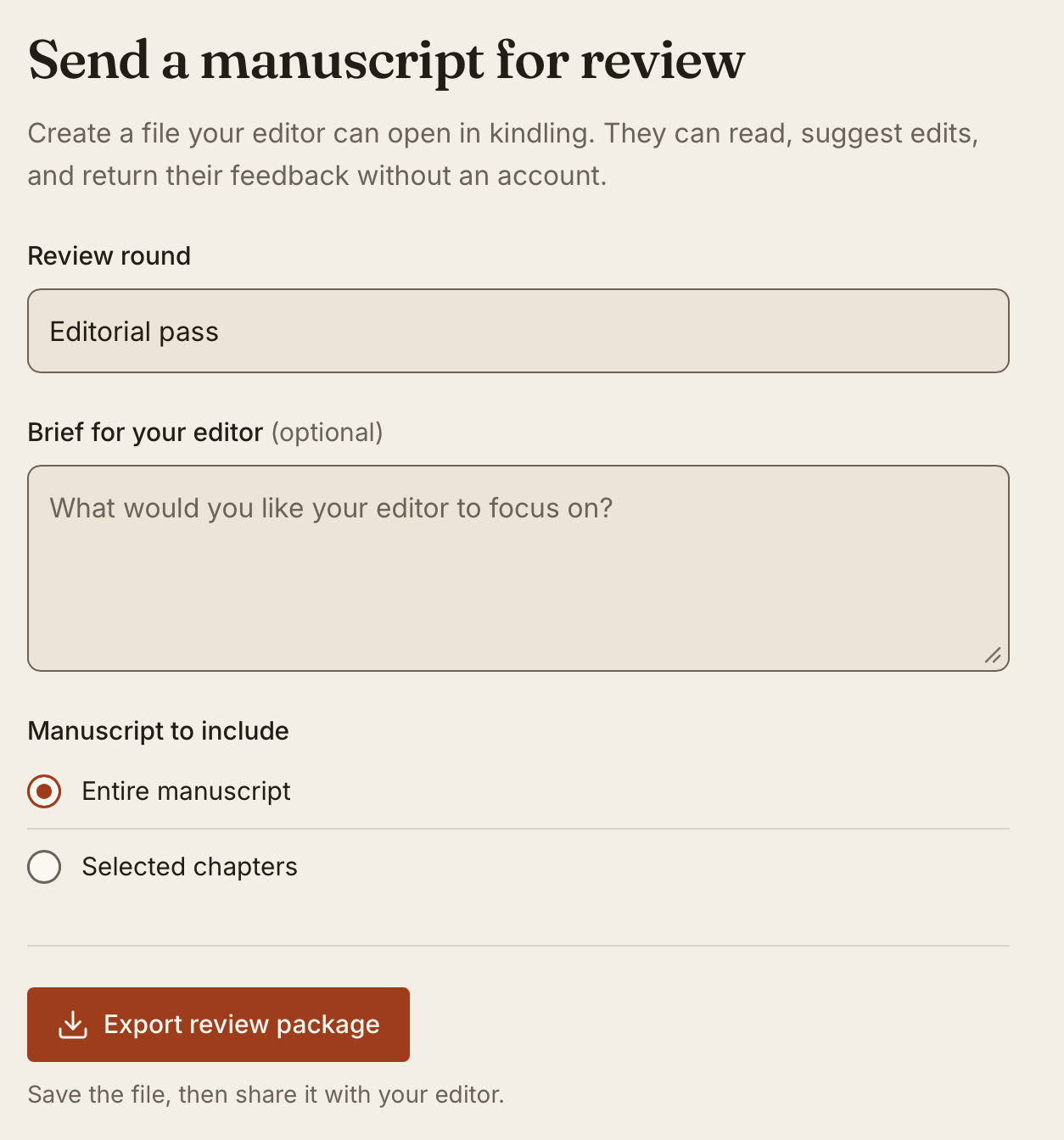
You can keep writing while the review is out. kindling keeps the version you sent so you can compare feedback with your later changes. Export a new round when you want the editor to read an updated draft.
Review the manuscript
Section titled “Review the manuscript”Choose Open Review Package on the start screen, then enter the name to show with your feedback.
- Suggest edits: type, delete, paste, or format text as you normally would. Your edits become tracked suggestions.
- Add a comment: select a passage and choose Comment, or use the default Cmd+Option+M / Ctrl+Alt+M. Shortcuts are customizable. Threads support replies, resolution, and reopening.
- Choose your view: Simple markup shows changes in the margin; All markup shows insertions and deletions in the prose.
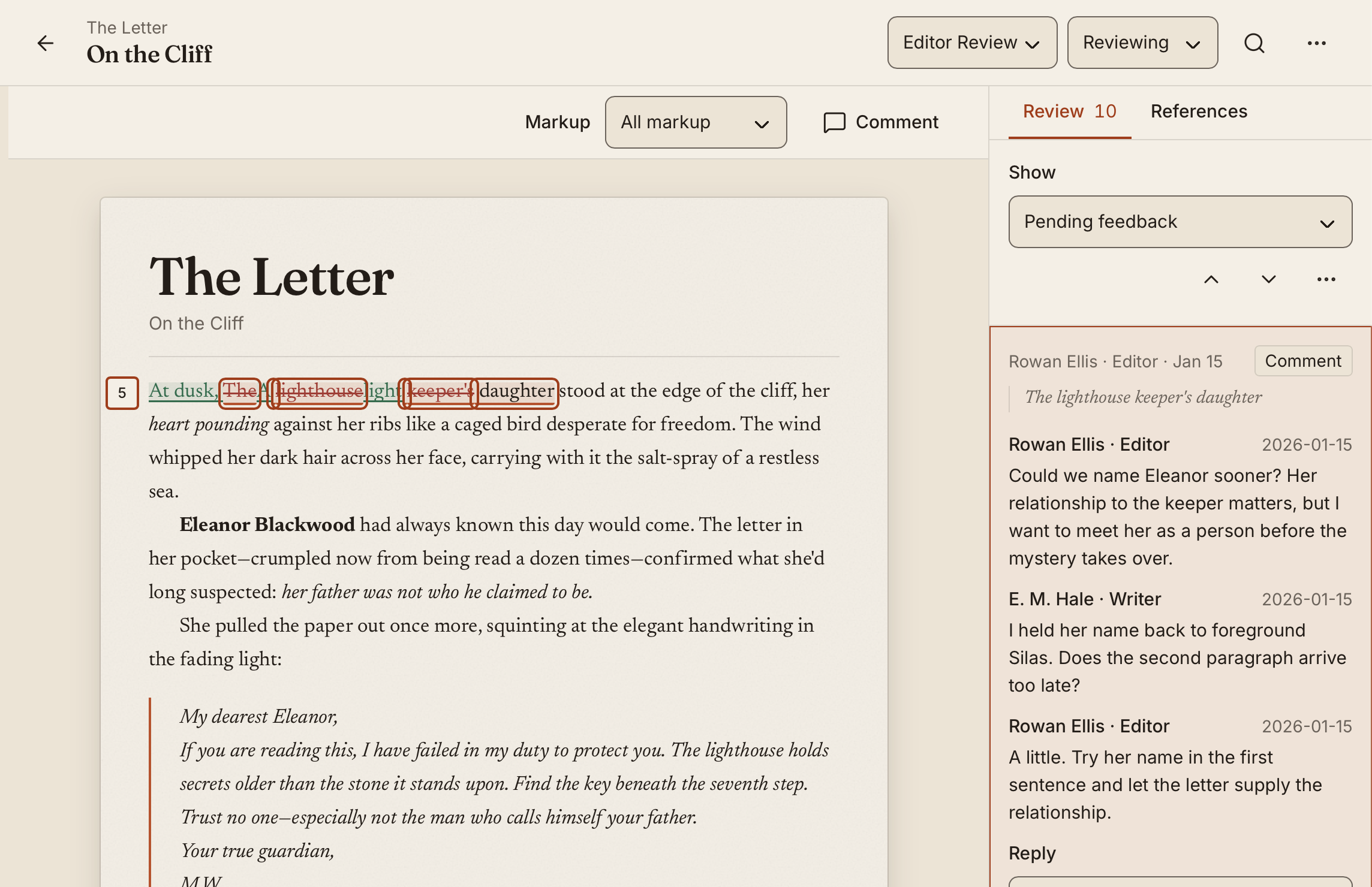
Work saves locally. When ready, choose Manuscript actions (⋯) → Export feedback and return the .kindling-feedback file to the writer.
Return and decide on feedback
Section titled “Return and decide on feedback”Open the returned file in the original project and choose Import and review feedback. Select a suggestion to Accept or Reject it, or reply to a comment. Importing feedback does not change your prose; accepting a suggestion does.
If you rewrote the passage after sending it, compare the original, current, and suggested text. Select the intended passage and choose Apply to selected passage. Unlock a scene before accepting changes to it.
To send your responses back, choose Review options (⋯) → Export replies and decisions.
Review inside your writing project
Section titled “Review inside your writing project”Choose Revisions above a scene. Switch between Reviewing to decide on feedback, Suggesting to propose edits, and Writing to return to drafting.
For saved versions, open Manuscript actions (⋯) → Draft history. Compare a draft with your current prose or another saved draft. Restoring a version saves your current prose in the history first.
Try On the Cliff in a fresh Sample Project to explore feedback without using your own manuscript. For file or save problems, see editorial review troubleshooting.