
Sync & Reimport
kindling can keep source-backed projects in sync with their original files while preserving the prose you’ve written in the app.
Sync vs. Reimport
Section titled “Sync vs. Reimport”| Sync Preview | Reimport | |
|---|---|---|
| How it works | Compares your source file to the current project and lets you apply selected changes | Re-reads the source file and updates the outline structure in one pass |
| Control | You choose which changes to apply | All outline changes are applied at once |
| Prose | Preserved unless you select a supported prose change | Preserved |
Outline changes preserve existing prose. novelWriter Sync also offers prose replacements that you review and select explicitly; they are unselected by default.
Supported Sources
Section titled “Supported Sources”Sync and reimport are available for projects imported from:
- Plottr (
.pltr) - Markdown (
.md) - yWriter (
.yw7) - Longform/Obsidian (Longform index file)
- novelWriter (project folder)
Scrivener is not currently supported for sync/reimport. Export → Scrivener → Update existing sends kindling changes into the bundle, with a match preview before writing. To bring an edited Scrivener bundle into kindling, import it as a new project.
Sync Preview Workflow
Section titled “Sync Preview Workflow”Use sync when your outline has changed in Plottr (or another tool) and you want to review what’s new before applying it:
- Open the project
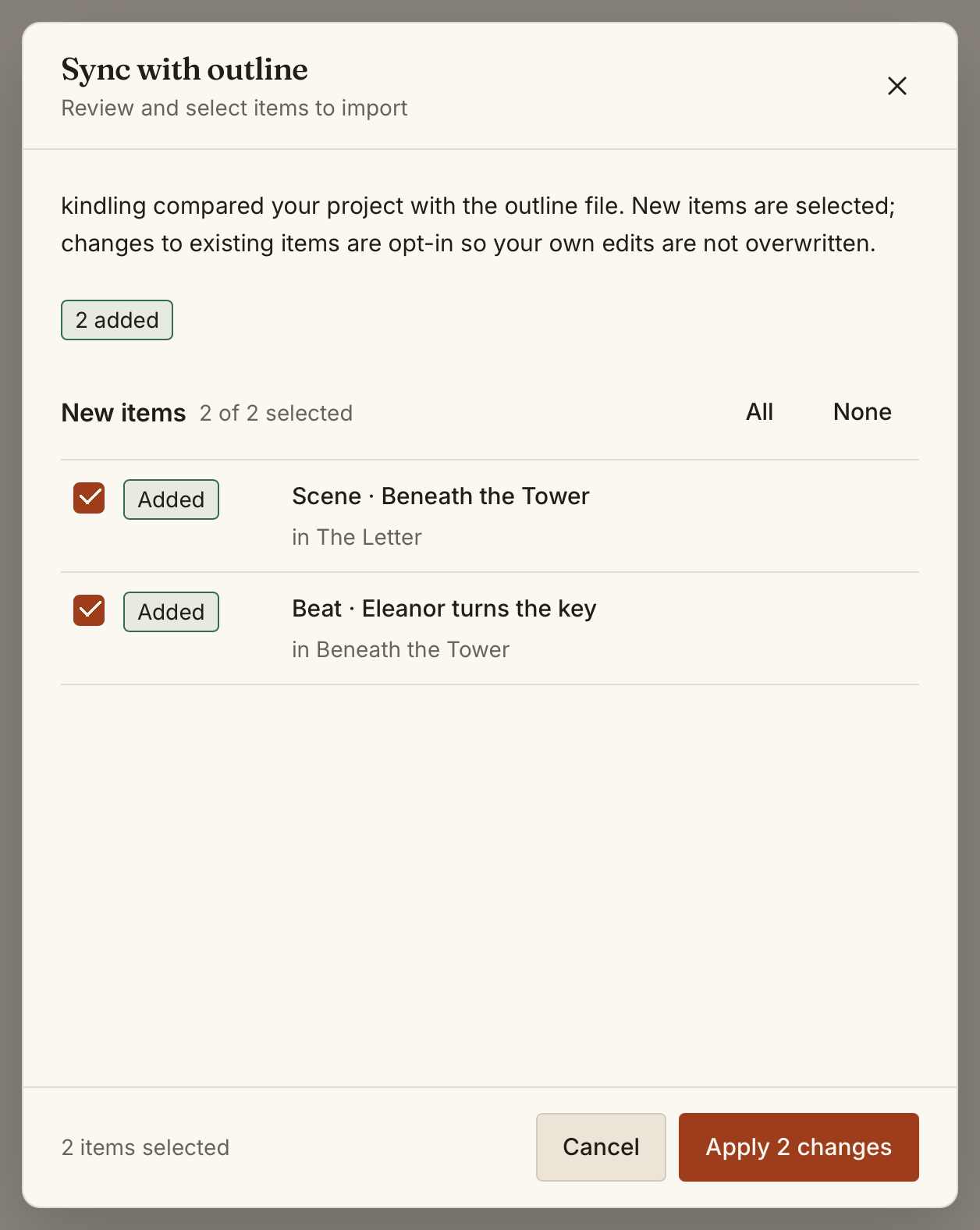
- Choose Sync from the project menu to generate a preview
- Review the list of additions and changes
- Select which changes to apply, then confirm
Reimport Workflow
Section titled “Reimport Workflow”Use reimport for a faster, all-at-once update:
- Open the project
- Choose Reimport from the project menu
- kindling re-reads the source file and updates the outline
- Review the summary after completion
What Sync Updates
Section titled “What Sync Updates”Sync and reimport focus on outline structure:
- Chapter, scene, and beat additions
- Title and synopsis updates
- Beat content updates
Locked chapters or scenes are skipped during sync. Outline changes preserve your prose; selected novelWriter prose changes replace the corresponding local text.
What Sync Does Not Change
Section titled “What Sync Does Not Change”- Local prose, unless you explicitly accept a novelWriter prose replacement
- Reference data (characters, locations, etc.) — reference enrichment is not re-run on sync
- Locked scenes or chapters
novelWriter Prose Sync
Section titled “novelWriter Prose Sync”Open a project imported from novelWriter and choose Sync. Compare the full current and incoming prose, select the changes you want, then choose Apply Sync. Prose changes start unselected, and locked scenes and chapters are skipped.
- With beat comments, Beat-mode prose can be reviewed per beat.
- Without beat comments, or in Page mode, prose is reviewed as a whole-scene change.
- Accepting a whole-scene change in Beat mode keeps the planning beats, puts the incoming text in the first beat, and clears prose from the remaining beats. It does not change the editor mode.
- Locally created or split beats keep their own prose and are not assigned to incoming beat comments.
Sync does not update reference notes, scene-reference links, or project metadata. Keep beat comments in their original order where possible and review matches carefully after inserting comments between existing ones.
Sync reads source changes into kindling. Export to a new empty folder to take kindling changes back to novelWriter; exporting does not change an existing sync connection. See novelWriter import and sync for the complete workflow.
Troubleshooting
Section titled “Troubleshooting””Project has no source path”
Section titled “”Project has no source path””Sync and reimport only work for projects originally created by importing a source file. Blank projects (created without an import) cannot be synced.
”Source file not found”
Section titled “”Source file not found””The source file has been moved or deleted. Either move the original source file back to its original location, or start a fresh import from the new path.
Changes not detected
Section titled “Changes not detected”- Ensure the source file saved successfully before syncing
- For Markdown sources: only outline structure is synced (no references), so reference changes in the source won’t appear