Scene Workflow
Scenes are where you turn your outline into prose. Each scene combines beats, synopsis, and metadata to keep your draft structured.
Shortcuts in this guide show the defaults. Customize commands and prose formatting in Settings.
Rolling Outline Mode
Section titled “Rolling Outline Mode”Every chapter and scene in kindling has a planning status that controls how much structure it shows. This lets you work at different levels of detail across your manuscript simultaneously.
| Status | Meaning | Sidebar view |
|---|---|---|
| 🟢 Fixed | Full beats, references, and discovery notes | Full outline with filters and drag-and-drop |
| 🟡 Flexible | Title + synopsis only — beats hidden until you need them | Simplified title-only scene list |
| ⚪ Undefined | A placeholder — you know this scene exists but haven’t planned it yet | Placeholder row |
Promote scenes progressively as your story takes shape: Undefined → Flexible → Fixed. Change status from the scene’s right-click context menu.
This is designed for pantsers and plantsers who want to capture the shape of their story without committing to full outlines upfront.
Scene Panel Layout
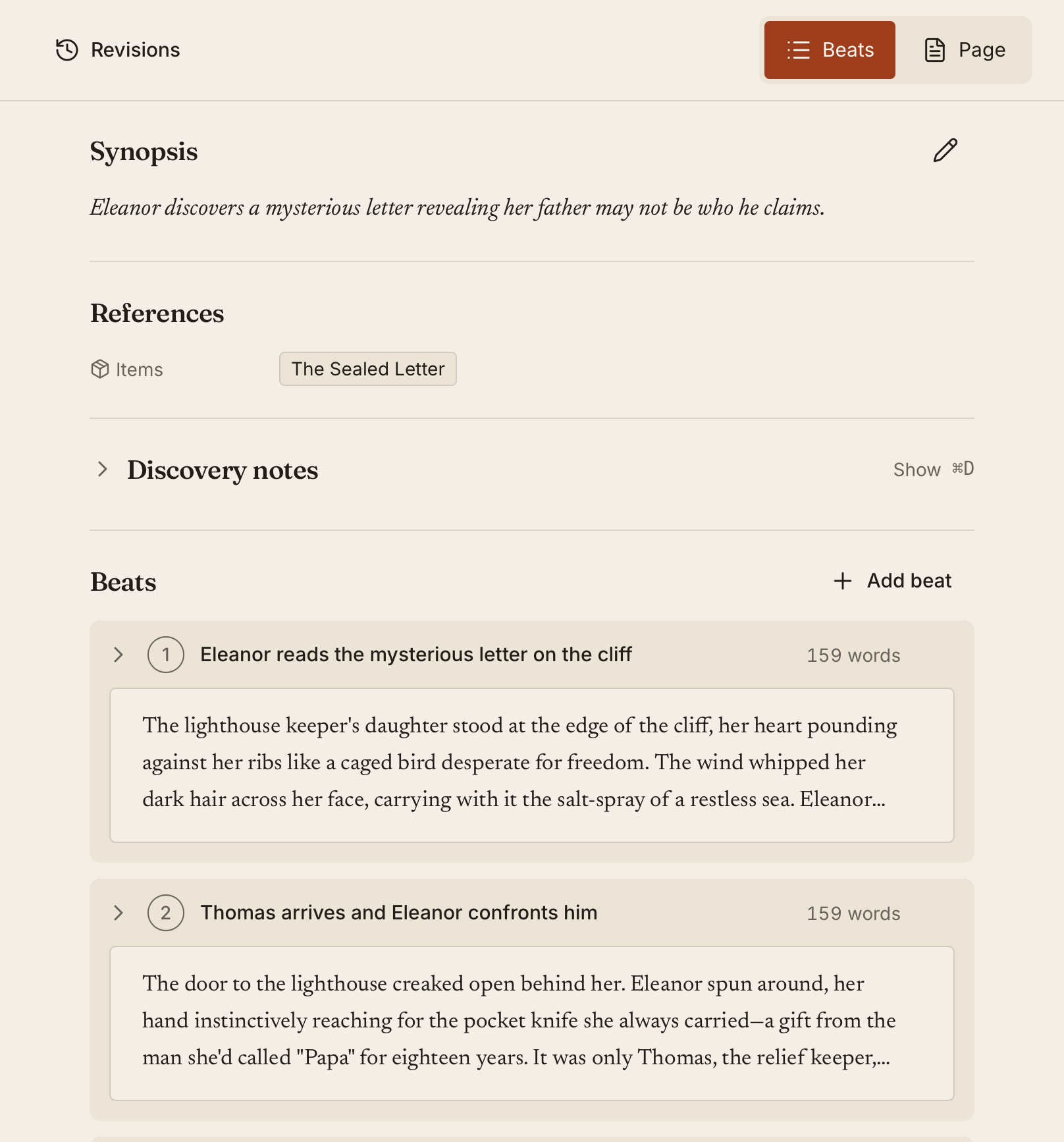
Section titled “Scene Panel Layout”When you open a scene, the Scene panel shows its beats, synopsis, and metadata controls in one place.
Beats and Prose
Section titled “Beats and Prose”- Beats are collapsible cards that act as writing prompts
- Expand a beat to write prose directly beneath it
- Prose auto-saves as you write
- Collapse a beat to keep the outline visible while you draft
The key idea: you never face a blank page. Your beats are right there, guiding what you write next. Draft one beat at a time, or expand them all and write in a continuous flow — it’s up to you.
Beat Density Indicator
Section titled “Beat Density Indicator”Each scene in the sidebar shows a beat density indicator — a visual gauge that lets you see at a glance how detailed your planning is relative to other scenes. Useful when you want to identify underdeveloped scenes before you start drafting.
Full-Page Prose Editing
Section titled “Full-Page Prose Editing”In addition to beat-by-beat drafting, you can switch to a full-page prose editor per scene. This gives you an uninterrupted writing surface while still keeping your beats available to reference in the panel alongside.
Toggle between beat view and page view from the scene toolbar.
Previous Scene Context
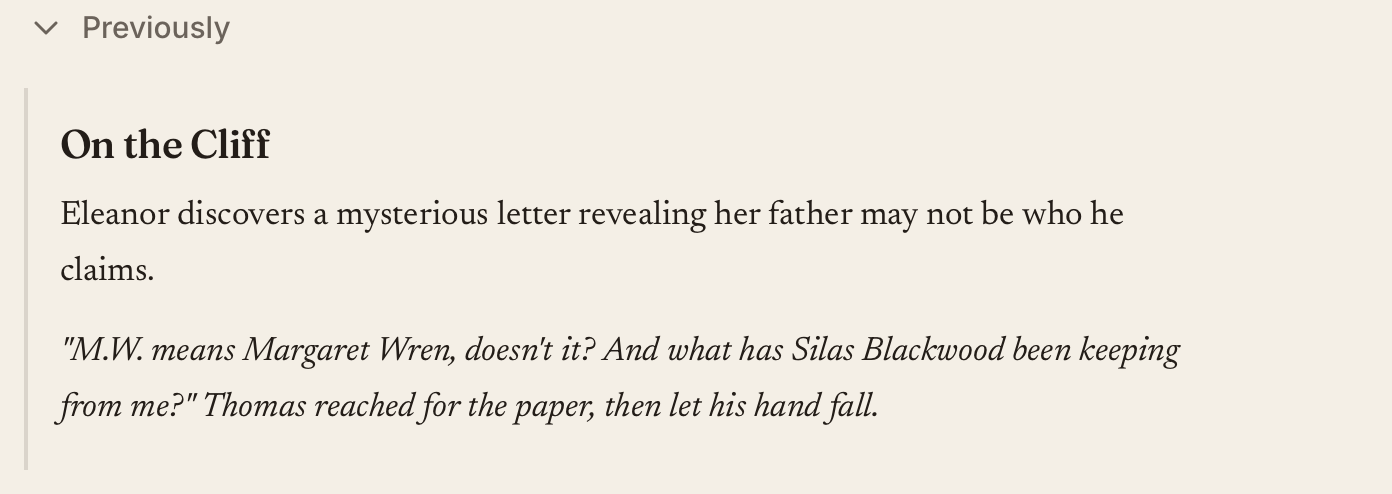
Section titled “Previous Scene Context”The Previously section above a scene shows the preceding scene’s title, synopsis, and last three sentences of prose. It follows manuscript order across chapter boundaries and skips archived chapters and scenes.
The excerpt comes from the preceding scene’s active Beat or Page view. Outline prompts never appear as prose. If that scene has no prose yet, you can still see its title and any synopsis; the first scene has no preceding context.
Click Previously to collapse or expand it. kindling remembers that choice across scenes and app restarts.
Resume Your Writing
Section titled “Resume Your Writing”kindling remembers your last scene, expanded beat, cursor position, and scroll position for each project. Switch projects or reopen the app to return to where you were writing.
Writing Progress and Revisions
Section titled “Writing Progress and Revisions”See scene, chapter, project, and session word counts in the status bar. Open Writing statistics for a chapter breakdown, or set a daily goal in Settings. The Writing Goals & Statistics guide explains what counts toward your totals and streak.
Choose Revisions above the scene to read feedback, suggest edits, or compare saved drafts. You can also exchange review files with an editor. Follow the Editorial Review guide for the full workflow.
Synopsis Editing
Section titled “Synopsis Editing”Use the synopsis field to capture a short summary for the scene. Synopses can be edited inline and save automatically. Synopses are included in DOCX and EPUB exports if you choose to include them.
Scene Type and Status
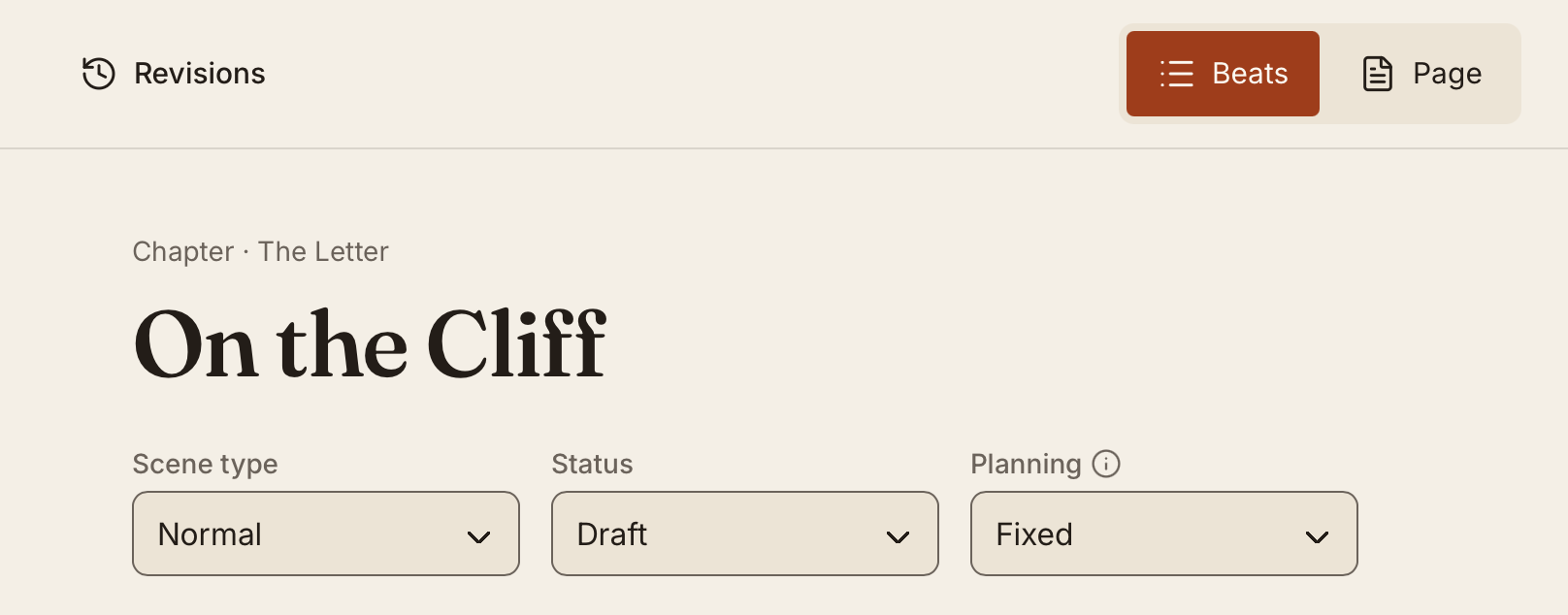
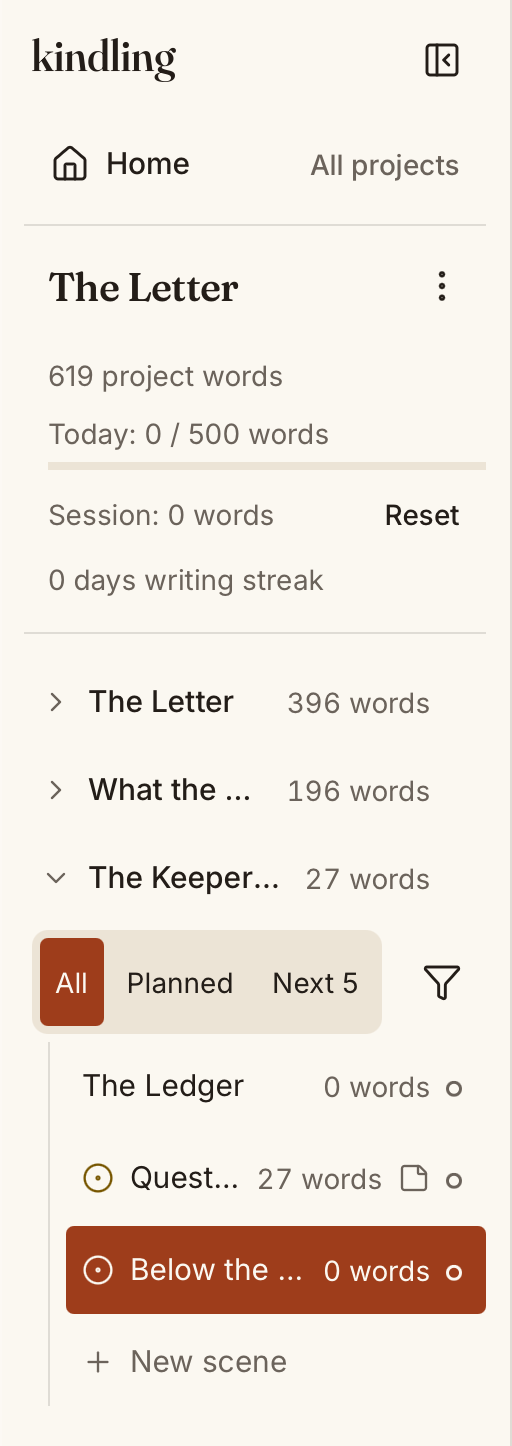
Section titled “Scene Type and Status”Scene metadata helps you filter and organize your outline:
| Field | Options | Purpose |
|---|---|---|
| Type | Normal, Notes, ToDo, Unused | Categorise scenes; Notes/ToDo/Unused are filtered in some exports |
| Status | Draft, Revised, Final | Track writing progress per scene |
These controls appear in the sidebar scene list as colour indicators and are used when filtering and exporting.
Scene Locking
Section titled “Scene Locking”Locked scenes (or scenes inside locked chapters) are read-only. Locking is useful when a scene is finished and you don’t want to accidentally change it.
- Lock a scene from the right-click context menu or scene toolbar
- Unlock it the same way to resume editing
- Locked scenes are skipped during Sync & Reimport
Beat Management
Section titled “Beat Management”Right-click a beat to access beat actions:
- Split — Divide a long beat into two
- Merge — Combine two adjacent beats into one
- Reorder — Drag beats to change their order
- Delete — Remove a beat (prose inside is also deleted)
Discovery Notes
Section titled “Discovery Notes”If you think of something while writing — a subplot idea, a continuity fix, a scene that needs to happen later — use an inline discovery note to capture it without breaking your flow. Press Cmd+D / Ctrl+D to add a discovery note to the current scene. Notes persist across sessions and can be promoted to full beats when you’re ready.
Discovery notes sit outside your beats and don’t affect export output.
Templates
Section titled “Templates”When creating a new project, kindling can pre-populate your outline with a story structure template. Templates create placeholder chapters and scenes with the appropriate beat scaffolding — you can customise or delete anything they generate.
Beat sheet templates:
| Template | Structure |
|---|---|
| Save the Cat | 15 beats across 3 acts following Blake Snyder’s beat sheet (Opening Image, Theme Stated, Set-Up, Catalyst, Debate, Break into Two…) |
| Hero’s Journey | 12 stages based on Joseph Campbell’s monomyth (Ordinary World, Call to Adventure, Refusal, Meeting the Mentor…) |
| Three-Act Structure | Classic dramatic structure — Setup, Confrontation, Resolution — with scene placeholder beats at key turning points |
Novel structure templates:
| Template | Structure |
|---|---|
| Seven-Point Story Structure | Dan Wells’s seven points: Hook, Plot Turn 1, Pinch Point 1, Midpoint, Pinch Point 2, Plot Turn 2, Resolution |
| Snowflake Method | Randy Ingermanson’s approach — starts with a one-sentence premise and expands outward to chapters and scenes |
| Story Grid | Shawn Coyne’s framework — scenes mapped to the five commandments (Inciting Incident, Progressive Complication, Crisis, Climax, Resolution) |
Screenplay Projects
Section titled “Screenplay Projects”When you create a new project, you can choose Screenplay as the project type. Screenplay projects add:
- Slugline input — Scenes include an INT./EXT. slugline field
- Page count estimator — Based on the standard 250 words per page
- Treatment export — Generate a 1-page or 5-page treatment document (DOCX) from your synopses
Screenplay projects otherwise work identically to novel projects — beats, references, and export all function the same way.
Find and Replace
Section titled “Find and Replace”Search your prose and replace across a single scene or the whole project.
| Shortcut | Opens |
|---|---|
Cmd+F / Ctrl+F | Find in the current scene |
Cmd+Opt+F / Ctrl+Alt+F | Find and replace in the current scene |
Cmd+Shift+F / Ctrl+Shift+F | Find and replace across the project |
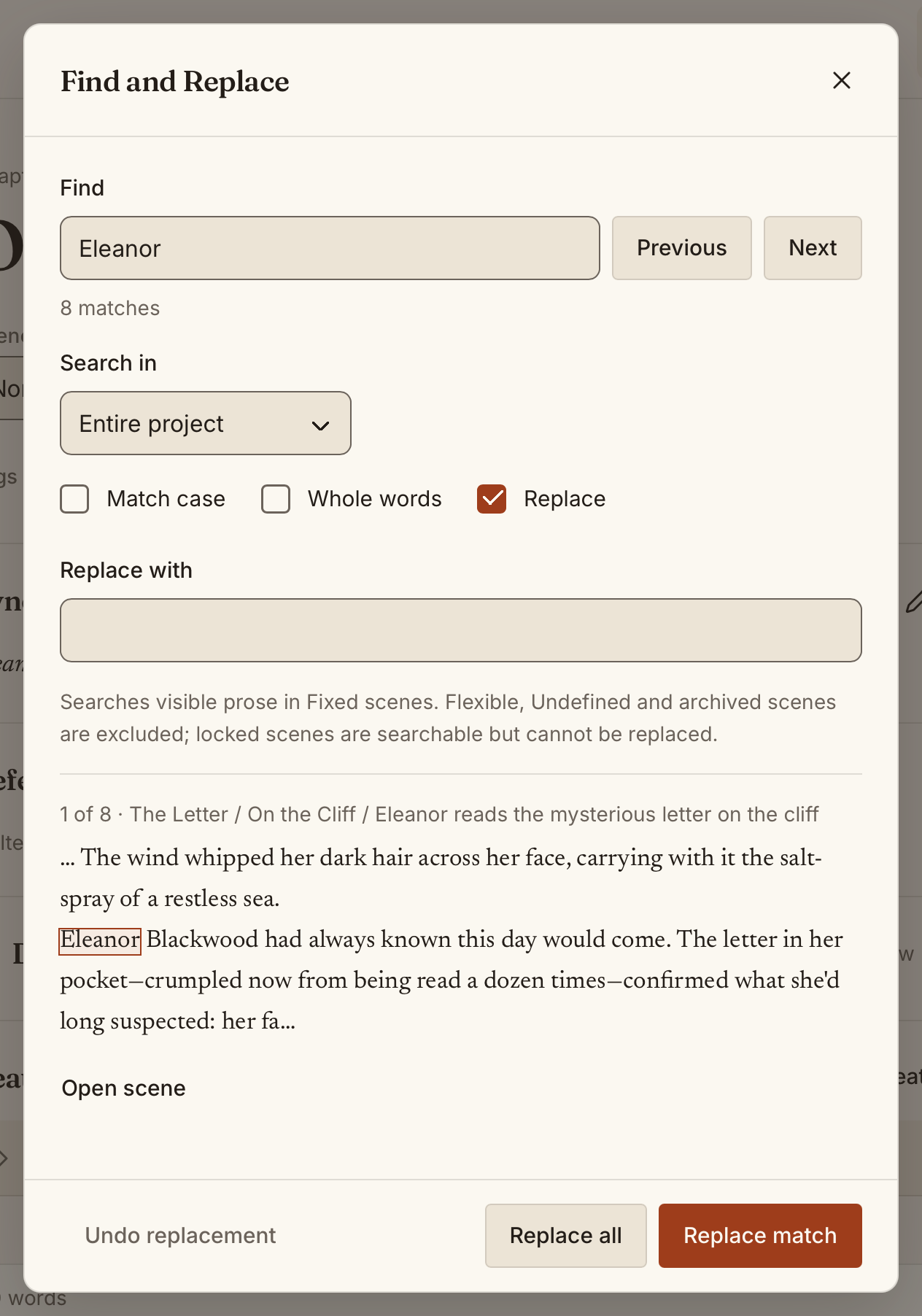
Switch between Current scene and Entire project inside the dialog, so you don’t need to reopen it to widen the search. Two toggles refine matching: Match case and Whole words. There is no regular-expression mode.
Step through hits with Previous and Next. Each match shows its chapter and scene, and Open scene jumps the editor there. Replace match changes the current hit; Replace all changes every editable match at once and asks for confirmation first. Undo replacement reverses the last replacement while the dialog remains open.
What gets searched
Section titled “What gets searched”Search covers the prose you can actually edit, which is narrower than everything in the project:
- Fixed scenes only. Flexible and Undefined scenes hide their prose in the editor, so they aren’t replacement targets either. Promote a scene to Fixed to include it. Archived scenes are excluded too.
- The active view only. A scene in Beat view is searched beat by beat; a scene in Page view is searched as one document. Prose left behind by the other view is a stale copy and is skipped.
- Locked scenes are searchable but not replaceable. Matches inside a locked scene or a locked chapter appear in the results marked
· Lockedso you can find them, but Replace all skips them and tells you how many it left alone.
Matches in scenes with unsaved edits are treated the same way and marked · Unsaved draft. Unsaved drafts are kept for the session — including after you close the project — so you can choose whether to keep or discard them.
Command Palette
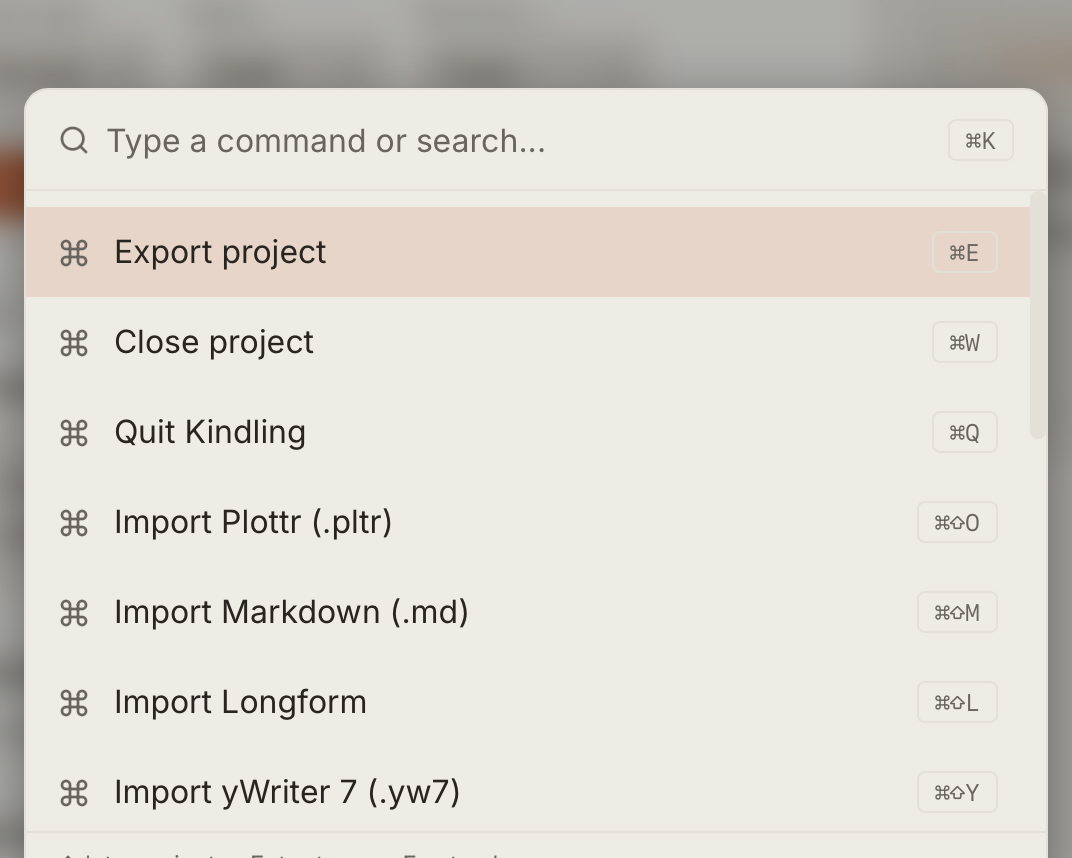
Section titled “Command Palette”Press Cmd+K / Ctrl+K to open the command palette from anywhere in the app. Fuzzy search across all available actions — import, export, settings, navigation, and more. Use arrow keys to navigate, Enter to execute.