
Exporting Projects
Export your writing for a submission, a reading copy, or another writing app. The simple format options are still available—you don’t have to use Custom. Exporting leaves your writing in kindling unchanged.
Export Dialog
Section titled “Export Dialog”- Open your project and choose File → Export.
- Select a format, such as Word, ePub, or Markdown.
- Adjust its options, choose a destination, and select Export.
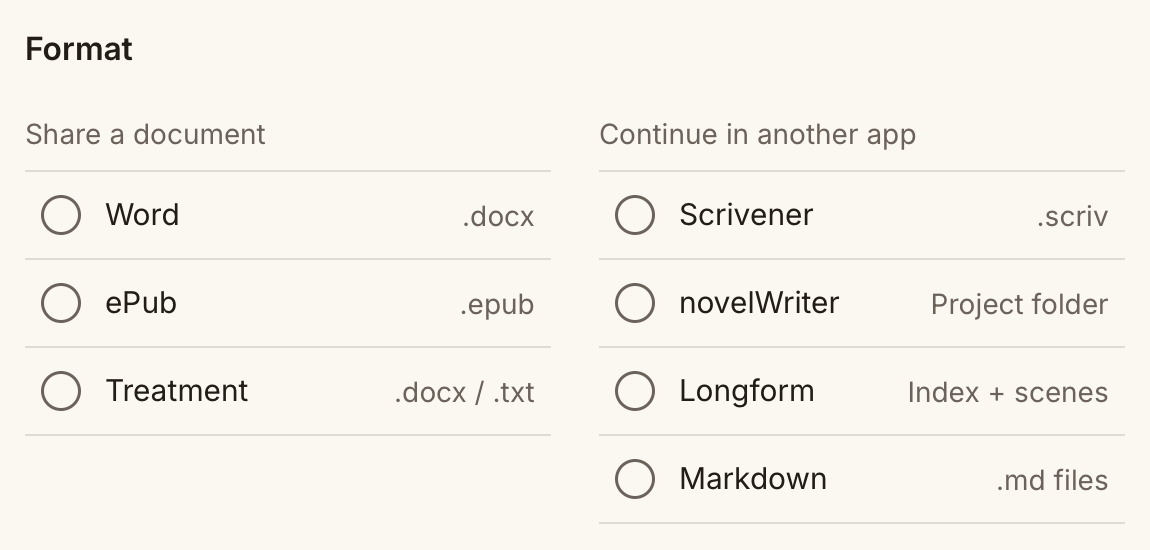
Word, ePub, Markdown, Longform, novelWriter, Scrivener, and Treatment all have direct export options. No saved profile is required.
To export a particular chapter or scene, use Export in its sidebar menu. Check the scope shown in the dialog; some project formats always include the whole project.
Custom Export Workspace
Section titled “Custom Export Workspace”Use Custom when you want saved settings, a live preview, more layout control, or HTML and plain-text manuscript output. Select a profile and Open workspace; Back to export returns to the simple format choices.
Custom remembers your choice and last profile for that project. You can still choose a standard format for an individual export.
See Export Workspace for content selection, typography, book details, live previews, and saving profiles.
Supported Formats
Section titled “Supported Formats”| Format | Output | Best For |
|---|---|---|
| DOCX | .docx file | Standard Manuscript Format submissions |
| Treatment | .docx or .txt file | Outline or story summary |
| Scrivener | .scriv bundle | Roundtrip with Scrivener 3 |
| Markdown | Separate scene files in the standard dialog; one manuscript file in Custom | Text-based writing tools |
| HTML | One .html document or fragment, through Custom | Websites and publishing tools |
| Plain text | One .txt manuscript, through Custom | Unformatted text |
| Longform/Obsidian | Index + scene files | Roundtrip with Obsidian |
| novelWriter | Project folder | Roundtrip with novelWriter 26.2+ |
| EPUB | .epub file | E-readers and ebook previews |
Export Scopes
Section titled “Export Scopes”| Scope | What It Includes |
|---|---|
| Project | All chapters and scenes |
| Chapter | Only the selected chapter |
| Scene | Only the selected scene |
In Custom, Word, EPUB, HTML, Markdown, and plain text use your manuscript selection. Longform, Scrivener, novelWriter, and treatments use the whole project and their own content rules; manuscript chapter selections and typography settings do not apply to them. See content selection.
Manuscript exports use each scene’s active writing view once: Page prose or Beat prose. Inactive cached prose is excluded; scenes without beats use Page prose. DOCX word counts follow the same rule. Included beat headings for a Page scene follow its prose rather than marking paragraph boundaries.
DOCX (Standard Manuscript Format)
Section titled “DOCX (Standard Manuscript Format)”DOCX exports are designed for manuscript submissions. Formatting options include:
- Title page — Uses app settings and project pen name (see Settings)
- Chapter heading style and page breaks
- Scene break markers
- Font family and line spacing
- Optional beat markers and scene synopses
The output follows Standard Manuscript Format conventions used by literary agents and publishers.
Use Custom for additional control over font size, paragraph spacing and indentation, margins, paper size, running headers, and contents. Save a profile for each recipient’s requirements. See Prepare a submission manuscript.
Treatment (DOCX)
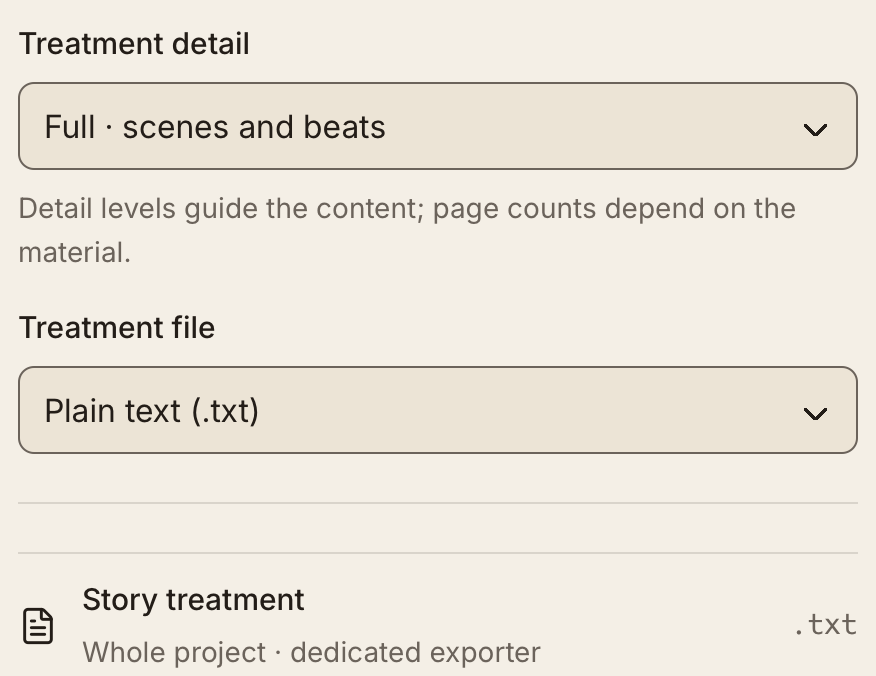
Section titled “Treatment (DOCX)”For screenplay and novel projects, a treatment summarizes the whole project’s outline, synopses, and beats. Choose a level of detail:
- One page · overview — A concise project summary
- Five pages · key scenes — A summary of key scenes
- Full · scenes and beats — The full scene-and-beat treatment
Export as Word or plain text. The one-page and five-page choices describe the level of detail; actual page counts depend on your content.
Treatment export is available from Export → Treatment in the project menu.
In Custom, choose Treatment as the output format, then open Files & format to set the detail level and file type.
Scrivener (.scriv)
Section titled “Scrivener (.scriv)”kindling can export to Scrivener 3’s native bundle format, letting you move your outline and prose into Scrivener for further drafting or compilation.
Two export modes:
- New bundle — Creates a fresh
.scrivproject from your kindling project - Update existing — Merges changes back into an existing
.scrivbundle, with a match preview showing exactly what will change before you confirm
The Custom workspace creates new Scrivener projects only. For scene matching and optional backups when updating an existing project, use Scrivener in the standard export dialog.
What Gets Exported
Section titled “What Gets Exported”- Project structure — Chapters and scenes as Scrivener binder items
- Scene titles and synopses — Written to Scrivener’s metadata fields
- Prose content — Written to each scene document
- References — Characters and locations as named notes in dedicated binder sections
Markdown
Section titled “Markdown”Markdown exports create a folder structure like:
My Project/ 01 - Chapter One/ 01 - Scene One.md 02 - Scene Two.md- Beat markers can be included as headings
- If you choose to delete an existing export folder, its contents are removed before writing new files. Use a separate destination to keep an earlier copy.
Custom Markdown produces one manuscript file, with headings and supported text formatting. Custom plain text produces one .txt file without rich-text formatting. Both show the generated text in the workspace. See text and project exports.
Choose Custom → Website chapters → Web / HTML to export selected chapters as one .html file. Choose a complete document or a body fragment for pasting, set the chapter heading level, and include built-in styling or let your website supply it. The Read and HTML tabs show the rendered manuscript and its source.
See Export HTML for a website.
Longform/Obsidian
Section titled “Longform/Obsidian”Longform exports are optimised for Obsidian + Longform workflows, making it easy to round-trip between kindling and Obsidian.
They retain outline prompts and the active editor mode, without inactive beat prose.
Output layout:
My Project/ My Project.md # Longform index Scene One.md Scene Two.md characters/ locations/ items/ objectives/ organizations/Scene files include:
- YAML frontmatter (
type,project,status,characters,setting,synopsis) - Scene title heading and synopsis block
<!-- kindling: ... -->metadata and beats marker
Reference notes are written into subfolders for characters, locations, items, objectives, and organizations.
novelWriter
Section titled “novelWriter”novelWriter exports create a complete project folder you can open directly in novelWriter 26.2 or newer, and re-import to establish a sync link.
Output layout:
My Project/ nwProject.nwx # project file content/ <handle>.md # one document per part, chapter and sceneOptions:
- Include beat comments (on by default) writes a
% Beat:comment before each beat’s prose. Keep it enabled — it preserves beat boundaries so a later Sync can review prose beat by beat rather than as one scene-level change. - Reference notes are included by default and map to novelWriter’s note roots: Characters → Character, Locations → World, Items → Object, Objectives → Plot, Organizations → Entity, Timelines → Timeline, Notes → Custom.
- Archived chapters and scenes are excluded.
In the standard dialog, choose an empty destination folder. In Custom, choose the parent folder; kindling creates a new named project folder inside it. Screenplay projects cannot be exported to this format.
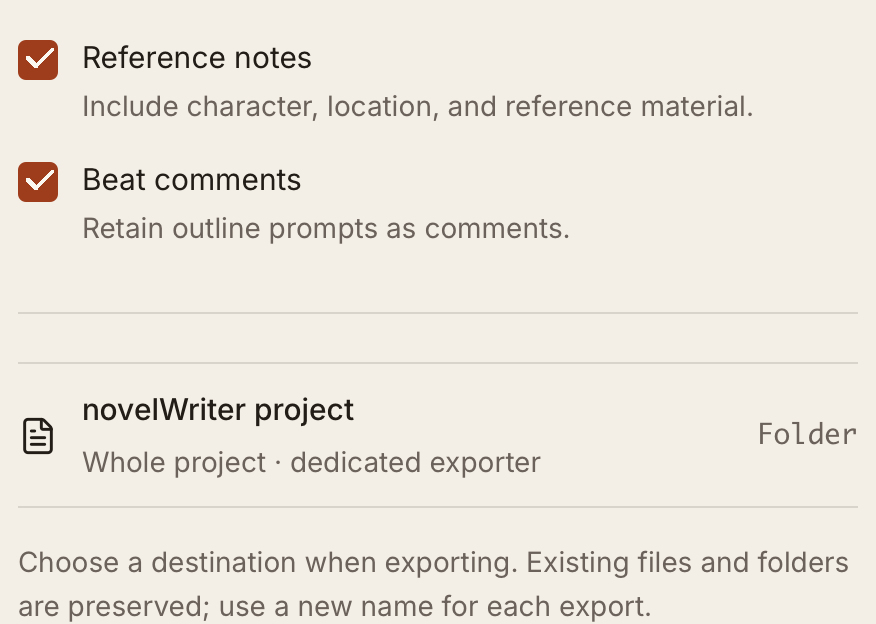
Exporting does not change the project’s existing sync connection. To work in novelWriter and bring changes back, export to an empty folder, then use Import → novelWriter on that folder — the imported project is linked to it, and Sync will read later edits.
Page-mode scenes have no stored beat boundaries, so they export as whole-scene prose with no beat comments.
Not included: underline, kindling-only planning data, and per-item importance. novelWriter shortcodes, footnotes, alignment and indent codes are not preserved on the way back in. See Importing Projects for the full round-trip notes.
EPUB exports include:
- Metadata — Title, author, description, language
- Theme selection — Classic, Modern, or Minimal
- Optional cover image
- Optional beat markers and scene synopses
Theme descriptions:
| Theme | Style |
|---|---|
| Classic | Serif body text, traditional chapter headings with drop caps |
| Modern | Clean sans-serif, minimal ornamentation, generous whitespace |
| Minimal | Body text only — no chapter styling, no decorative elements |
EPUB files can be opened in any e-reader app (Apple Books, Kindle, Calibre, etc.) for previewing your manuscript as a finished book.
Use Custom to save book details with your content selection and typography preferences. Readers may override fonts and spacing, so check the exported file in your intended reading app. A selected cover is included in the EPUB but does not appear in the workspace’s manuscript preview. See Prepare an ebook or reading copy.
Export Settings
Section titled “Export Settings”Several settings affect export output. See Settings for the full list, but the key ones are:
- Author name and contact info — appears on DOCX title pages
- Pen name (project-level override) — replaces the author name for a specific project
- Genre and description — included in EPUB metadata
For importing or syncing exported content back into kindling, see Importing Projects and Sync & Reimport.