
Settings
Choose Settings at the bottom of the project sidebar, or open File → Settings…. The default shortcut is Cmd+, on macOS / Ctrl+, on Windows and Linux. Settings is also available from the start screen and command palette.
The sidebar groups shared settings under kindling → Preferences, and project settings under Projects → Manuscript / Reference Library. Choose an area to see its controls:
- Appearance & Guidance: Light, Dark, or System theme and contextual guidance tips. These preferences apply immediately across kindling.
- Keyboard Shortcuts: Remap commands and prose formatting for all projects. Changes apply immediately.
- Author & Contact: Author name, address, phone, and email used on exported manuscript title pages. Choose Save author details to apply changes.
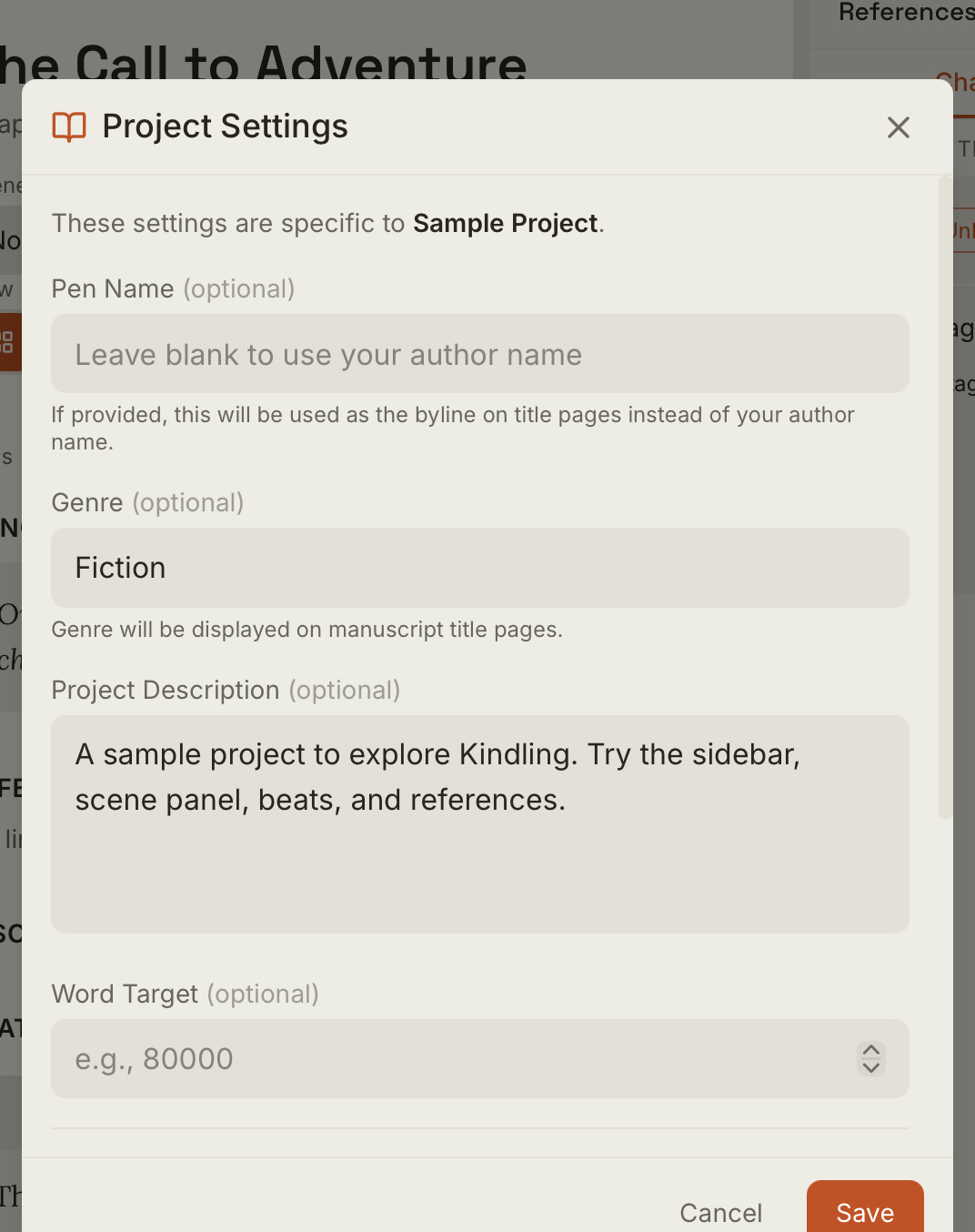
- Project Details: Pen name, genre, description, word target, and daily writing goal. A pen name overrides the shared author name for that project’s byline. A daily goal of 0 turns off the goal.
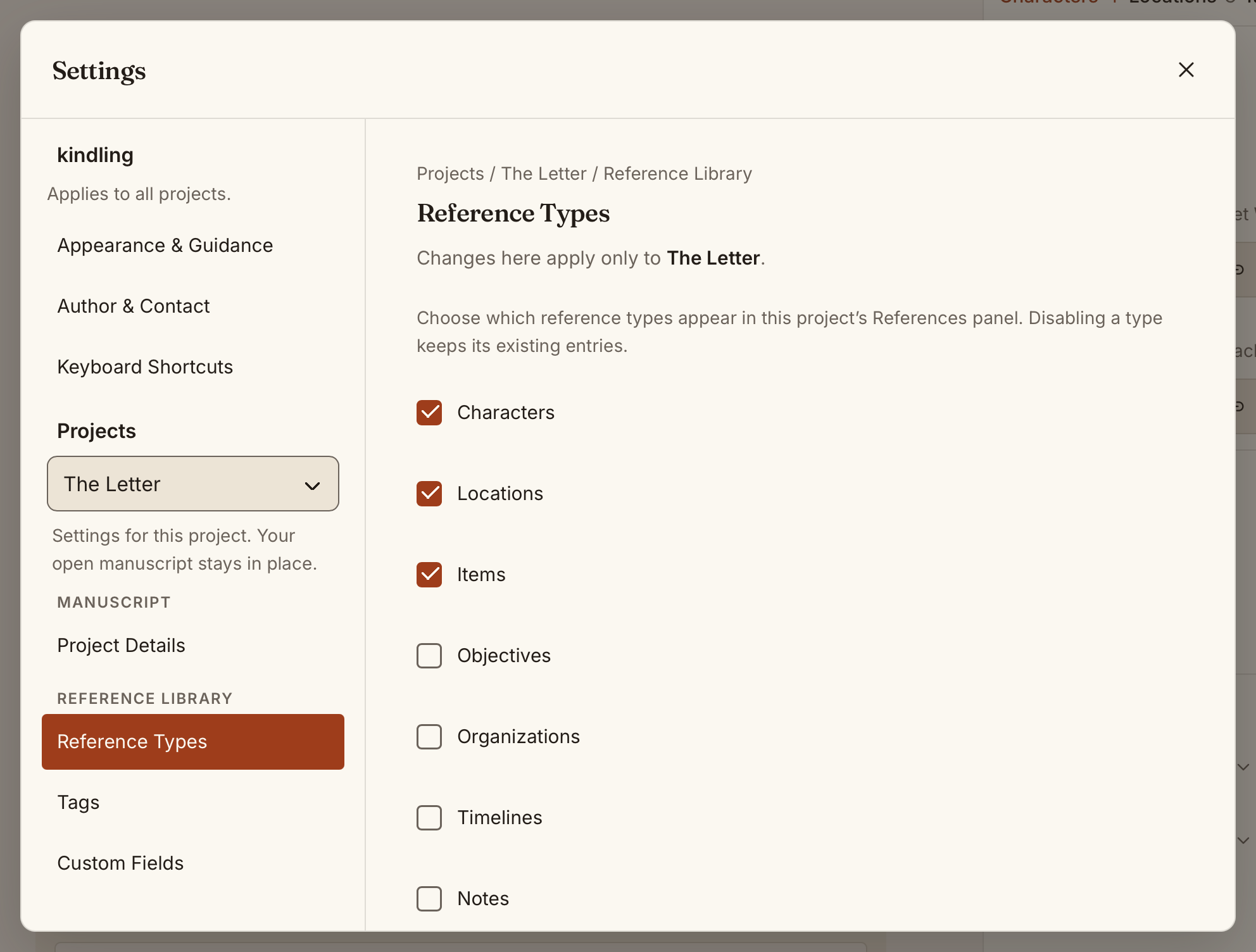
- Reference Types: Choose which reference categories appear in the selected project’s References panel. Disabling a category keeps its existing entries.
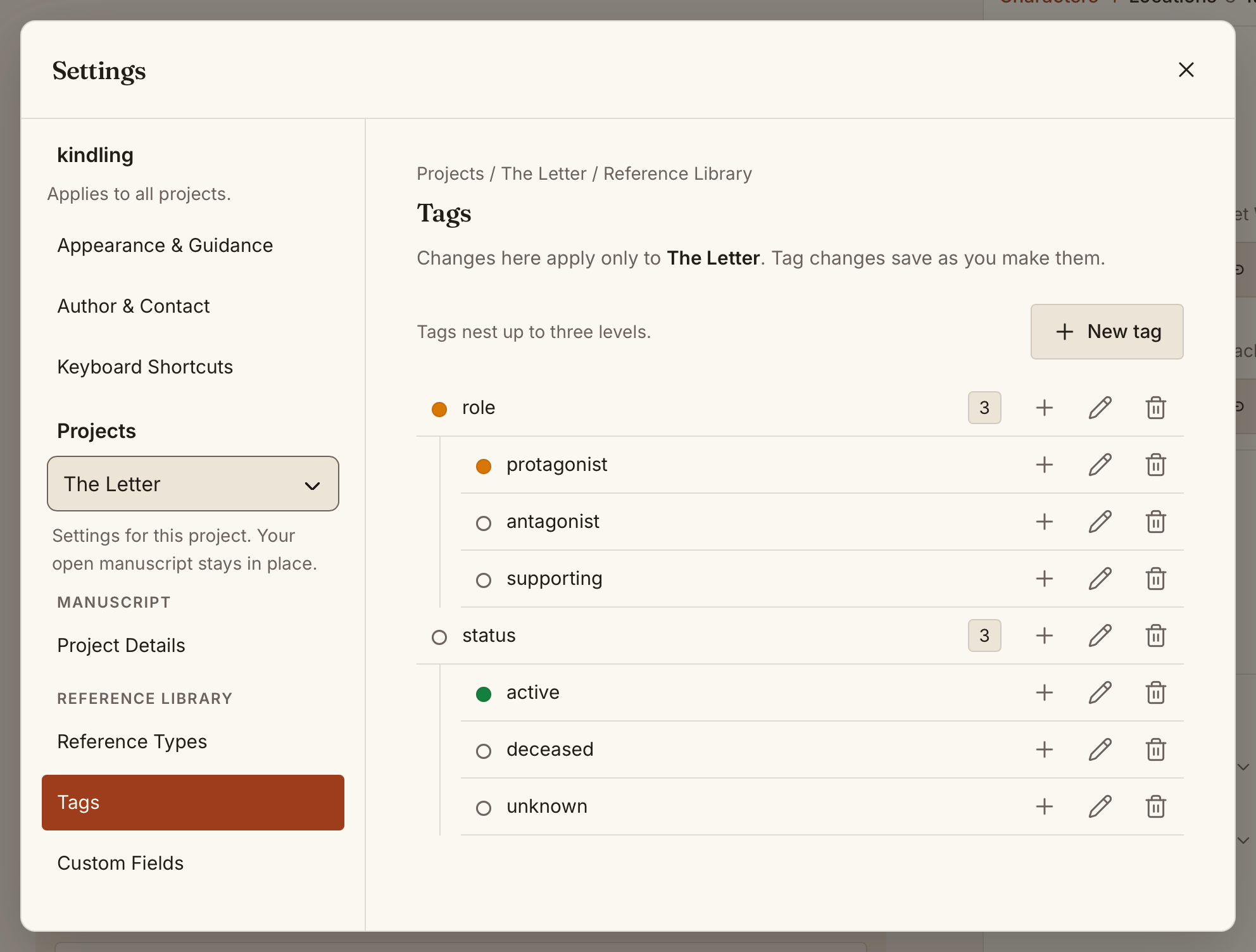
- Tags: Create, edit, and organize project tags.
- Custom Fields: Define typed fields for the project’s enabled reference categories.
Choosing a project
Section titled “Choosing a project”Use the Project selector under Projects in the Settings sidebar. It stays available as you navigate; choosing a project from a shared settings area opens Project Details. Your open manuscript and selected scene stay in place. If you have no projects yet, create or import one first; shared preferences remain available.
Choose Save project changes to save project details and reference types. Tags and custom fields save through their own add, edit, and delete controls. Drafts remain while you navigate settings areas. Before switching projects or closing Settings with unsaved changes, kindling asks whether to discard them or keep editing.
Keyboard shortcuts
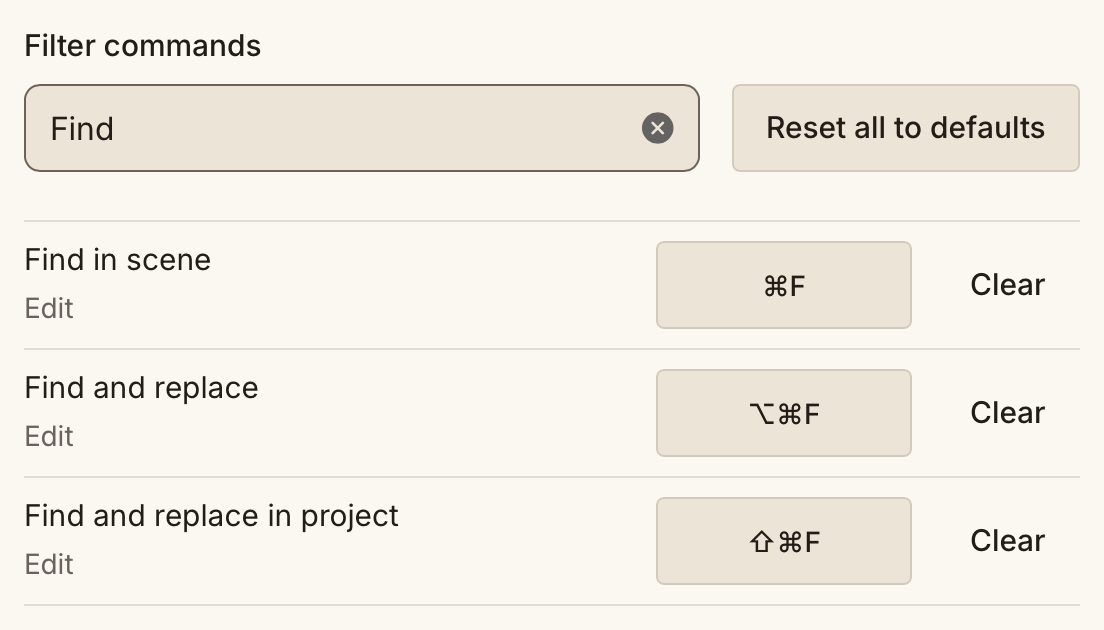
Section titled “Keyboard shortcuts”- Open Settings → kindling → Preferences → Keyboard Shortcuts.
- Filter by command name, then select its current binding or Unassigned.
- Press Command on macOS or Ctrl on Windows/Linux with a letter, number, punctuation key, or function key. Escape cancels recording.
Bindings save immediately for all projects and persist across launches. Menus, the command palette, and shortcut hints update to match.
If a combination is already in use, kindling names the command using it. Clear that binding before reassigning the keys. Clear disables only the shortcut; Reset all to defaults restores every binding. Standard text editing, system, and dialog keys — including copy, paste, undo, Tab, Enter, and Escape — stay reserved.
Shortcut examples throughout these guides show the defaults. See shortcut troubleshooting if a binding cannot load or save.
Export impact
Section titled “Export impact”Author and contact details populate manuscript title pages. Project pen names, genre, and descriptions supply project-specific export metadata. Word targets and daily goals help track drafting progress.
Author and project preferences
Section titled “Author and project preferences”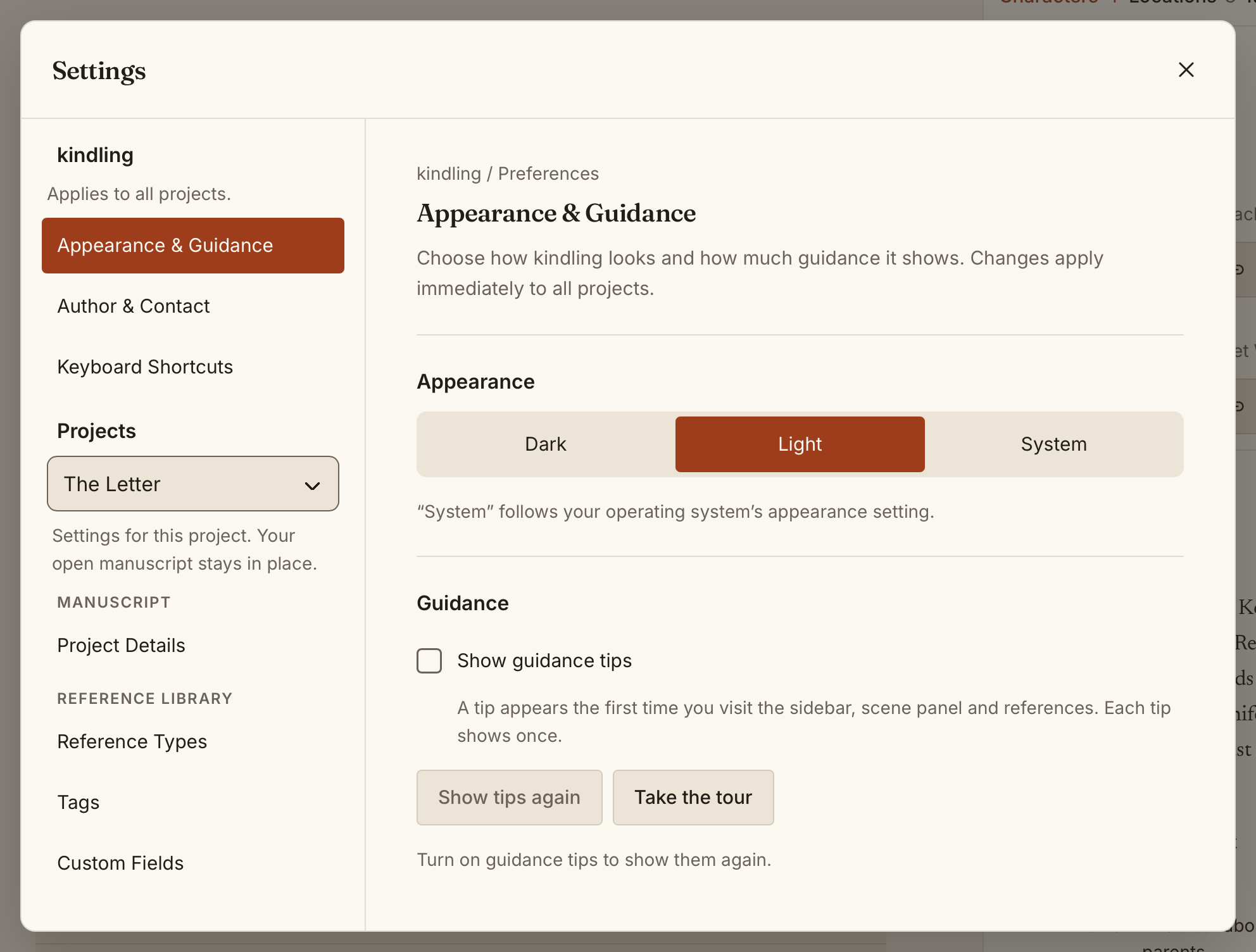
See Writing Goals & Statistics for daily goals, session counts, and streaks.
Reference types, tags, and custom fields
Section titled “Reference types, tags, and custom fields”Reference Types, Tags, and Custom Fields each have their own Settings area. Choose a project before editing them. Reference types include Characters, Locations, Items, Objectives, Organizations, Timelines, and Notes.
Tags can be nested up to three levels. Custom fields support text, number, date, select, and multi-select values. See References for using them and copying references between projects.
See Exporting Projects for how author details and project metadata appear in exports.
Where Are My Files?
Section titled “Where Are My Files?”Project data
Section titled “Project data”kindling stores all your projects in a single SQLite database in the app’s data directory:
| Platform | Location |
|---|---|
| macOS | ~/Library/Application Support/com.kindlingwriter.app/kindling.db |
| Windows | %APPDATA%\com.kindlingwriter.app\kindling.db |
| Linux | ~/.local/share/com.kindlingwriter.app/kindling.db |
This file contains your projects, chapters, scenes, beats, references, and project settings. Export profiles are stored separately on this device and are not included in project transfers or snapshots.
Backing up your projects
Section titled “Backing up your projects”Copy kindling.db to a safe location — an external drive, cloud folder, or version control repository. kindling doesn’t need to be closed to copy the file; SQLite handles concurrent reads safely.
For automatic backups, point your backup tool (Time Machine, Backblaze, rsync, etc.) at the app data directory.
Project snapshots
Section titled “Project snapshots”Open Snapshots from the project menu to save a version you can preview or restore later. Each new snapshot has its own file, even when created moments apart. Deleting one leaves the others available. Keep a separate backup of your app data too.
Moving projects between computers
Section titled “Moving projects between computers”Copy kindling.db to the same path on the new machine (or anywhere in the app data directory). kindling will load all your projects on next launch.
If you’re moving from one operating system to another, the file format is the same — SQLite databases are cross-platform.
Your source files
Section titled “Your source files”Imported source files (.pltr, .yw7, .scriv, .md) are not copied into kindling — the app stores a path to their original location. If you move a source file, kindling will show a “source file not found” warning when you try to sync or reimport. Either move the file back, or start a fresh import from the new path.