
Importing Projects
kindling supports importing story outlines from multiple sources. This guide explains how to prepare your files for a successful import and how reference data is handled.
Importing a Project
Section titled “Importing a Project”- Choose Import from the start screen or project menu.
- Select a source file (Plottr, Scrivener, Markdown, yWriter) or a Longform/Obsidian vault folder.
- Review the import summary and finish the import.
Supported Formats
Section titled “Supported Formats”| Format | Extension | Description |
|---|---|---|
| Plottr | .pltr | Plottr project files |
| Scrivener | .scriv | Scrivener 3 project bundles |
| Markdown | .md | Plain text markdown outlines |
| yWriter | .yw7 | yWriter 7 project files |
| Longform/Obsidian | .md index or vault folder | Longform index + scene files |
| novelWriter | Project folder | nwProject.nwx + content/ documents |
Post-import Reference Classification
Section titled “Post-import Reference Classification”If kindling detects references during import, it opens a classification dialog so you can confirm or adjust reference types before continuing. You can skip this step and refine reference types later in the References panel.
Plottr (.pltr)
Section titled “Plottr (.pltr)”Plottr is a visual story planning tool. kindling imports the full project structure including characters, locations, and scene cards.
What Gets Imported
Section titled “What Gets Imported”- Project metadata — Series name, premise, genre, theme
- Chapters — Plottr “beats” become chapters (typically acts)
- Scenes — Scene cards with titles and descriptions
- Characters — Names, descriptions, and custom attributes (Role, Gender, etc.)
- Locations — Places with descriptions and notes
- Relationships — Which characters and locations appear in each scene
File Requirements
Section titled “File Requirements”- Export from Plottr as a
.pltrfile (the native format) - The file must be valid JSON
- Supports Plottr file format version 2023+
- Rich text formatting (bold, italic) is stripped to plain text
- Custom character/location attributes are preserved
- Scene card descriptions become beat content
- Tags are read but not yet displayed in the UI
Scrivener (.scriv)
Section titled “Scrivener (.scriv)”kindling supports importing Scrivener 3 project bundles, making it easy to move a project you’ve already started in Scrivener into kindling’s outline-and-draft workflow.
What Gets Imported
Section titled “What Gets Imported”- Project structure — Binder hierarchy becomes chapters and scenes
- Scene titles and synopses — Preserved from Scrivener’s metadata
- Prose content — RTF scene content is converted to plain text
- Characters and locations — If stored as named notes in dedicated binder sections
File Requirements
Section titled “File Requirements”- Use a Scrivener 3
.scrivbundle (the folder package created by Scrivener on macOS/Windows) - Open the
.scrivpackage as a folder and select the project root
- Scrivener’s compile settings are not imported — export formatting is handled by kindling
- Rich text styles (bold, italic, tables) are preserved where possible; complex formatting may simplify
- Scrivener labels and status fields are mapped to kindling scene type and status where possible
Markdown (.md)
Section titled “Markdown (.md)”For users who prefer plain text, kindling supports a simple markdown outline format.
What Gets Imported
Section titled “What Gets Imported”- Project name — Derived from the filename
- Chapters — H1 headers (
# Chapter Title) - Scenes — H2 headers (
## Scene Title) - Beats — List items or paragraphs under scenes
File Format
Section titled “File Format”# Act One
## The Opening
- Introduce the protagonist- Establish the ordinary world- Show the character's flaw
## The Inciting Incident
- Something disrupts the status quo- The protagonist must respond
# Act Two
## Rising Action
The stakes begin to escalate.
- Or you can mix list items- With paragraph contentSyntax Reference
Section titled “Syntax Reference”| Element | Syntax | Example |
|---|---|---|
| Chapter | # + title | # Chapter One |
| Scene | ## + title | ## The Beginning |
| Beat (list) | - or * + content | - Hero wakes up |
| Beat (paragraph) | Plain text under a scene | The sun rose slowly. |
Rules and Behavior
Section titled “Rules and Behavior”- Chapters require H1 — Lines starting with
#become chapters - Scenes require H2 — Lines starting with
##become scenes - Scenes need chapters — H2 headers are ignored if no H1 chapter exists yet
- Beats need scenes — List items and paragraphs are ignored if no scene exists yet
- H3+ are treated as beats —
###and beyond become paragraph-style beats, not structure - Empty list items are skipped — A line with just
-is ignored
Tips for Best Results
Section titled “Tips for Best Results”- Start with a chapter — Begin your file with
# Chapter Name - Keep it simple — The parser intentionally ignores complex markdown (tables, code blocks, etc.)
- One thought per beat — Each list item or paragraph becomes a separate beat
Edge Cases
Section titled “Edge Cases”| Input | Result |
|---|---|
| Empty file | Creates a default “Chapter 1” |
| Only H2 headers (no H1) | Creates default chapter, but scenes are ignored |
| Only list items (no headers) | Creates default chapter, but beats are ignored |
| Only H1 headers | Chapters with no scenes or beats |
yWriter (.yw7)
Section titled “yWriter (.yw7)”yWriter stores projects in a single XML file. kindling imports the outline, metadata, and reference data.
What Gets Imported
Section titled “What Gets Imported”- Project metadata — Title, author, description, word target
- Chapters and parts — Normal chapters are imported; notes/todo chapters are skipped
- Scenes — Titles, synopsis, status, and type
- Beats — Goal/Conflict/Outcome become beats
- Prose — Scene content is preserved as prose
- References — Characters, locations, and items
- Scene links — Character and location links per scene
File Requirements
Section titled “File Requirements”- Use a
.yw7file from yWriter 7 - The file must be valid XML (UTF-8 or UTF-16)
- Items are imported as reference items (type: items)
- Scenes marked as unused are skipped
Longform/Obsidian (.md)
Section titled “Longform/Obsidian (.md)”kindling supports Longform/Obsidian projects by reading a Longform index file and its scene files. You can import either:
- The index file (recommended), or
- The vault folder, if it contains exactly one Longform index
kindling enhances the Obsidian workflow — it doesn’t replace it. Keep research and worldbuilding in Obsidian, and use kindling for structured outlining, scene planning, and export-ready manuscripts.
What Gets Imported
Section titled “What Gets Imported”- Project metadata from the Longform index
- Chapters and scenes based on the
longform.sceneslist - Scene status, synopsis, and prose
- Reference types via frontmatter, tags, folders, and wikilinks
- Reference notes from character/location/item/objective/organization notes
Recommended Vault Structure
Section titled “Recommended Vault Structure”My Novel/ index.md scenes/ Scene One.md Scene Two.md characters/ locations/ items/ objectives/ organizations/Longform Index Frontmatter
Section titled “Longform Index Frontmatter”Longform index files must include YAML frontmatter with a longform block:
---longform: format: scenes title: My Project sceneFolder: scenes scenes: - Chapter One - - Scene One - Scene Two---format: scenesis required (single-scene Longform projects are not supported yet)sceneFolderpoints to your scene filesscenessupports nested lists for chapter grouping
Scene Frontmatter Conventions
Section titled “Scene Frontmatter Conventions”Scene files can include frontmatter fields to help kindling parse metadata and reference types:
---status: draftsynopsis: The inciting incident begins.pov: "[[;Mara]]"characters: - "[[;Mara]]" - "[[;Jon]]"setting: "[[~Old Harbor]]"items: [[Ancient Map]]objectives: Find the relicorganizations: "[[Guild of Tides]]"---Supported fields: status, synopsis, pov, characters, setting / locations, items / objects, objectives / goals, organizations / factions / groups / teams.
You can also use Dataview-style fields (characters::, setting::) or #status/final tags.
Reference Notes and Best Practices
Section titled “Reference Notes and Best Practices”- Use folders like
characters/,locations/,items/,objectives/,organizations/ - Add
type,category, ortagsin frontmatter (e.g.,type: character) - Use
[[;Name]]for characters and[[~Place]]for locations when a name could be ambiguous - Keep a single Longform index file per vault to avoid import ambiguity
Format Comparison
Section titled “Format Comparison”| Feature | Plottr | Scrivener | Markdown | yWriter | Longform/Obsidian |
|---|---|---|---|---|---|
| Chapters | ✓ | ✓ | ✓ (H1) | ✓ | ✓ |
| Scenes | ✓ | ✓ | ✓ (H2) | ✓ | ✓ |
| Beats | ✓ | — | ✓ | ✓ | ✓ |
| Synopsis | ✓ | ✓ | — | ✓ | ✓ |
| Prose | — | ✓ | — | ✓ | ✓ |
| Characters | ✓ | ✓ | — | ✓ | ✓ |
| Locations | ✓ | ✓ | — | ✓ | ✓ |
| Items/Objectives/Orgs | — | — | — | Items only | ✓ |
| Scene–reference links | ✓ | — | — | Characters/locations | ✓ |
novelWriter (Project Folder)
Section titled “novelWriter (Project Folder)”Import a novelWriter project to plan its chapters and scenes in kindling while keeping your draft and reference notes together.
File Requirements
Section titled “File Requirements”- Choose Import → novelWriter from the project menu, or novelWriter in the guided import.
- Select the project folder containing
nwProject.nwxand itscontent/folder. Select the whole folder, not an individual scene file. - Finish the import and review any reference classifications offered.
Keep the project folder intact. kindling reads current .md documents and legacy .nwd documents from project format versions 1.4–1.6.
What Gets Imported
Section titled “What Gets Imported”- Project name and author
- Parts, chapters and scenes from the manuscript headings
- Prose with bold, italic and strikethrough formatting
- Scene synopses from
%Synopsis:comments - Beats from
% Beat:comments, with the prose following each comment - Reference notes with names, descriptions and attributes
- Scene links to characters, locations and supported reference notes, resolved by their tags
| novelWriter Note Root | kindling Reference Type |
|---|---|
| Character | Characters |
| World | Locations |
| Object | Items |
| Plot | Objectives |
| Entity | Organizations |
| Timeline | Timelines |
| Custom | Notes |
Blank lines separate paragraphs; a single newline stays within the same paragraph. Part documents that contain prose receive a normal chapter so their scenes remain accessible.
A scene without beat comments opens in Page mode and also has a single beat titled Scene Content. Archive, Trash and Template roots are skipped; only the first Novel root is imported.
Moving Between kindling and novelWriter
Section titled “Moving Between kindling and novelWriter”To take a kindling novel into novelWriter, choose Export → novelWriter and select an empty destination folder. Exported projects require novelWriter 26.2 or newer. Beat comments and reference notes are included by default; archived chapters and scenes are excluded. Screenplays cannot be exported to this format.
Keep Include beat comments enabled to preserve beat boundaries for later sync. Page-mode scenes export as whole-scene prose because they have no stored beat boundaries. Exporting does not change the project’s existing sync connection. Import the exported folder to create a kindling project linked to that novelWriter source.
Reviewing Changes with Sync
Section titled “Reviewing Changes with Sync”After editing the source project in novelWriter, open the linked kindling project and choose Sync. Review the full current and incoming prose, select the changes you want, then choose Apply Sync. Prose changes are unselected by default, and locked chapters and scenes are skipped.
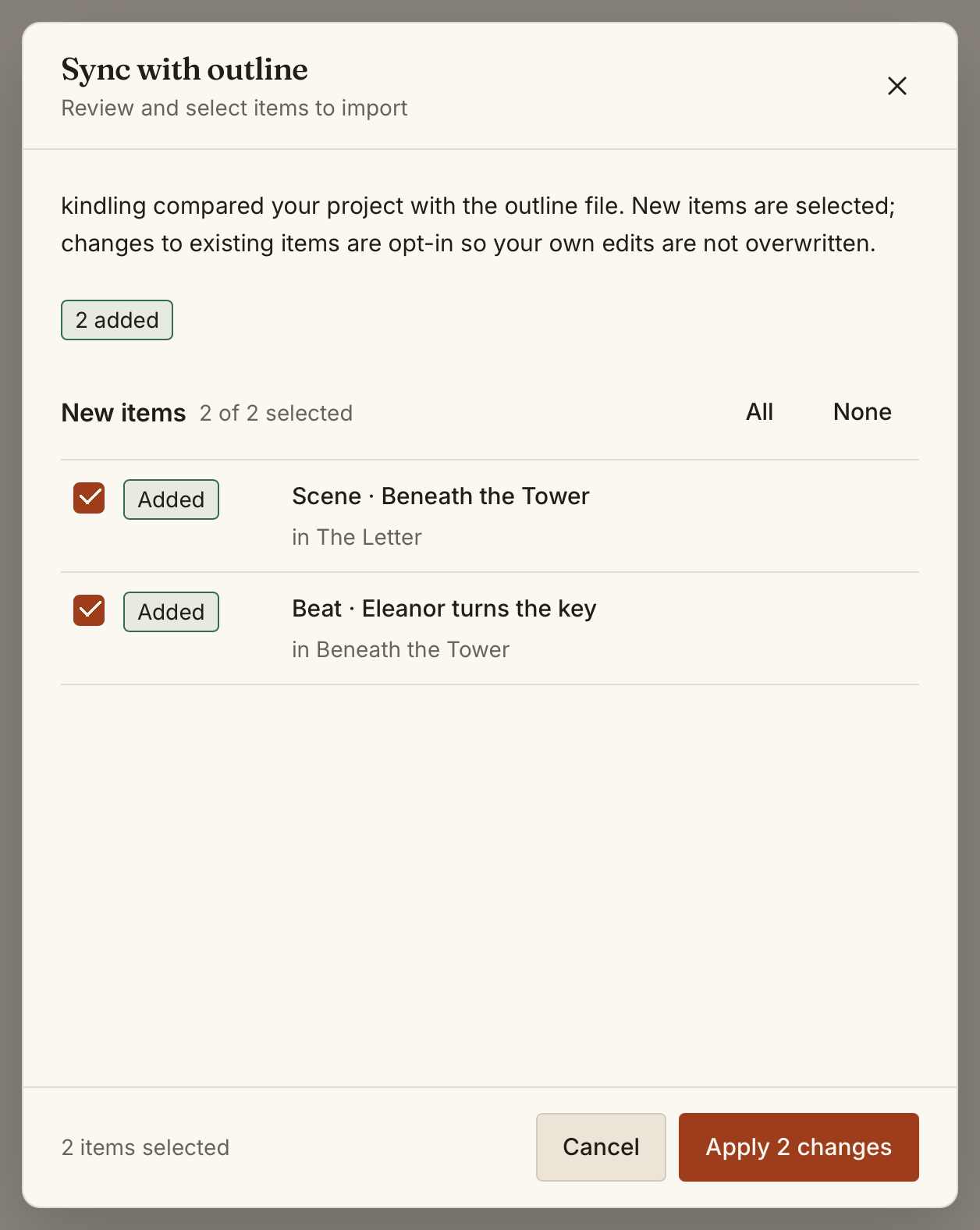
- With beat comments, Beat-mode prose can be reviewed and accepted for individual beats.
- Without beat comments, or in Page mode, prose is reviewed as one scene-level change.
- Accepting a whole-scene replacement in Beat mode keeps the planning beats, puts the incoming text in the first beat and clears prose from the remaining beats. The editor mode stays the same.
- Declining a change leaves your local prose untouched. Sync reads changes into kindling; export to a new empty folder to take kindling changes back to novelWriter.
Beats created or split locally keep their own prose and are not assigned to incoming beat comments during Sync.
Sync covers chapters, scenes, beats and prose. Changes to notes, reference links and project metadata are not synced. Keep beat comments in their original order when possible: inserting a beat between existing comments can change how subsequent beats are matched, so review those changes carefully.
Limitations
Section titled “Limitations”Underline and kindling-only planning data are not included in export. novelWriter shortcodes, footnotes, alignment and indent codes, ignored text and per-item importance are not preserved. H4 sections are flattened into scene prose; POV, focus, mention and story references are not restored as scene links.
Troubleshooting
Section titled “Troubleshooting””Could not read file”
Section titled “”Could not read file””Check that the file exists and you have read permissions.
”Invalid file structure”
Section titled “”Invalid file structure””- Plottr: Ensure the file is valid JSON (not corrupted)
- Scrivener: Ensure you’re selecting the
.scrivbundle folder, not a file inside it - Markdown: Check for encoding issues (file should be UTF-8)
- Longform/Obsidian: Ensure the index has
longform.format: scenes
Missing Content After Import
Section titled “Missing Content After Import”- No chapters: Make sure your file has the expected structure markers
- No scenes: Scenes require a parent chapter to exist first
- No beats: Beats require a parent scene to exist first
- No characters/locations: These are only imported from Plottr, Scrivener, yWriter, or Longform/Obsidian
Missing References or Notes
Section titled “Missing References or Notes”- Confirm reference notes live in recognizable folders (e.g.,
characters/,locations/) - Add
type,category, ortagsfrontmatter to classify notes - Use
[[;Name]]and[[~Place]]prefixes for ambiguous names - Run the post-import reference classification dialog to adjust types
Known Limitations
Section titled “Known Limitations”- Longform import supports
format: scenesonly (single-scene format is not supported yet) - Markdown imports outline structure only; it does not include reference types
- Sync/reimport updates outline structure but does not enrich references for Markdown sources
- Scrivener import does not carry over compile settings or style sheets