
References
References help you track people, places, and story elements across scenes. Each reference can include notes and custom attributes, and you can link them to specific scenes.
Reference Types
Section titled “Reference Types”kindling supports seven reference types:
- Characters — People in your story
- Locations — Places where scenes occur
- Items — Objects that matter to the plot
- Objectives — Goals, quests, or missions
- Organizations — Groups, factions, institutions
- Timelines — Events and chronology
- Notes — Other research and story notes
Choose File → Settings → Reference Types and select a project to enable or disable its categories.
References Panel Overview
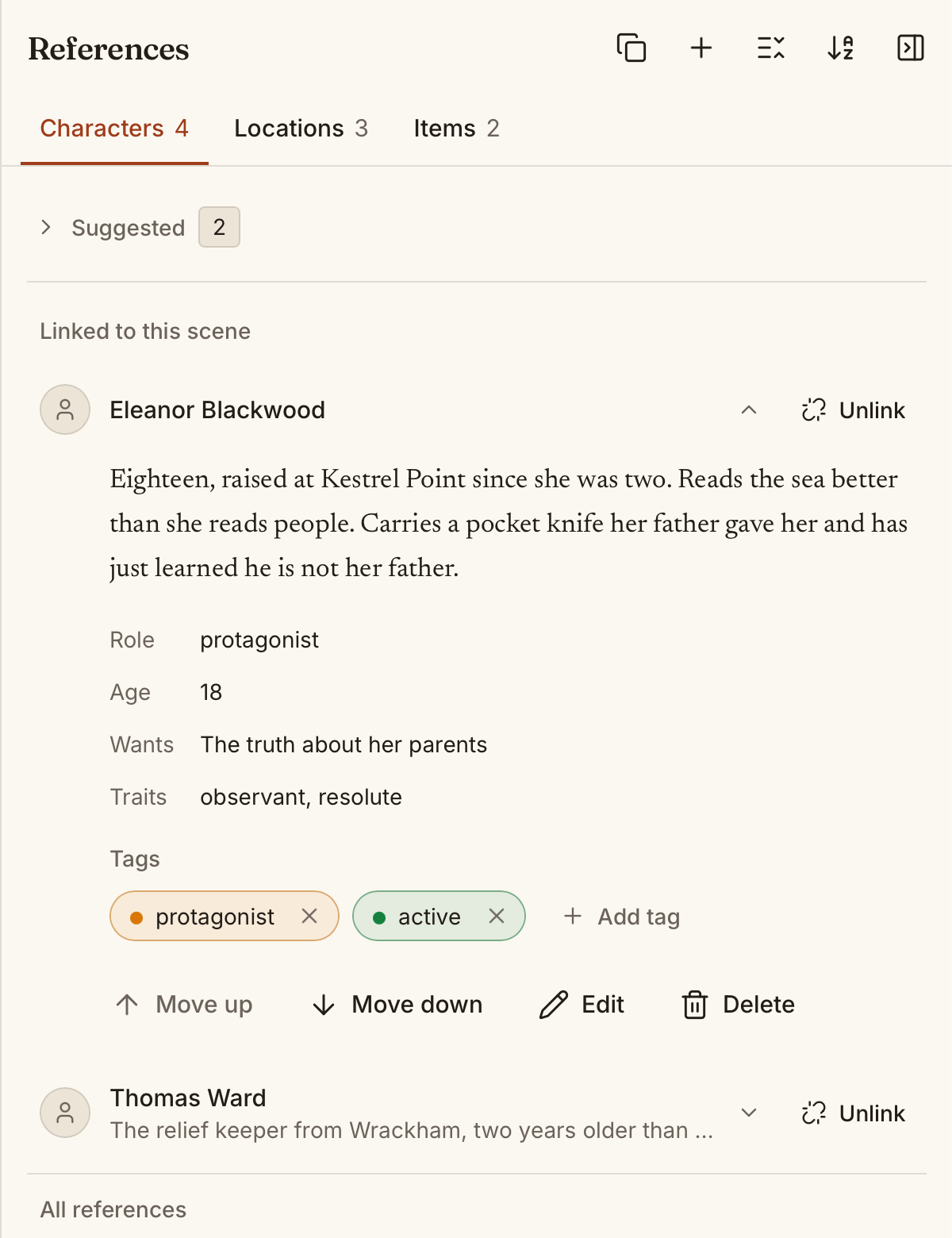
Section titled “References Panel Overview”The References panel sits to the right of the editor and shows tabs for each enabled reference type. From here you can create, edit, and link references to the current scene.
When a scene is selected:
- References linked to the scene appear at the top
- Unlinked references appear below
- Drag references to set per-scene ordering
- Expand/collapse state is saved per scene
Editing Reference Details
Section titled “Editing Reference Details”Each reference includes:
| Field | Description |
|---|---|
| Name | The reference’s primary name |
| Description | A short summary or bio |
| Notes | Free-form notes for your own reference |
| Custom attributes | Key/value pairs for structured data (e.g., Eye colour: green) |
Custom Fields (v1.2+)
Section titled “Custom Fields (v1.2+)”References support typed custom field definitions. Instead of plain key/value pairs, you can define fields with specific types:
| Field type | Use it for |
|---|---|
| Text | Names, descriptions, freeform notes |
| Number | Age, height, chapter count |
| Date | Birth dates, event dates |
| Select | Role (protagonist/antagonist/supporting) |
| Multi-select | Tags, traits, affiliations |
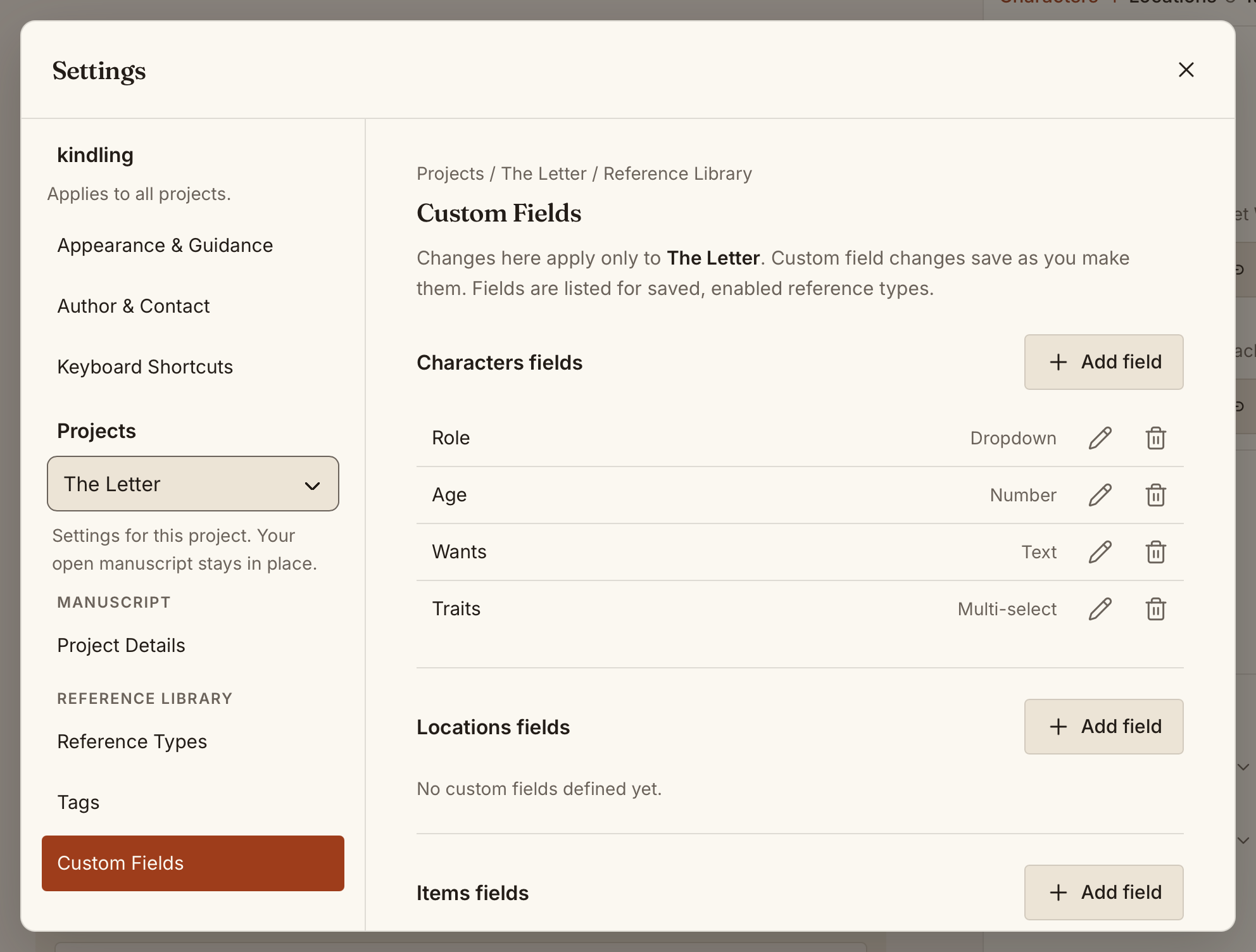
Open File → Settings → Custom Fields and choose a project to manage its definitions. Custom field definitions are created per project and apply consistently across all references of that type. This means you can define “Role” once for Characters and all characters will have that field.
Hierarchical Tags (v1.2+)
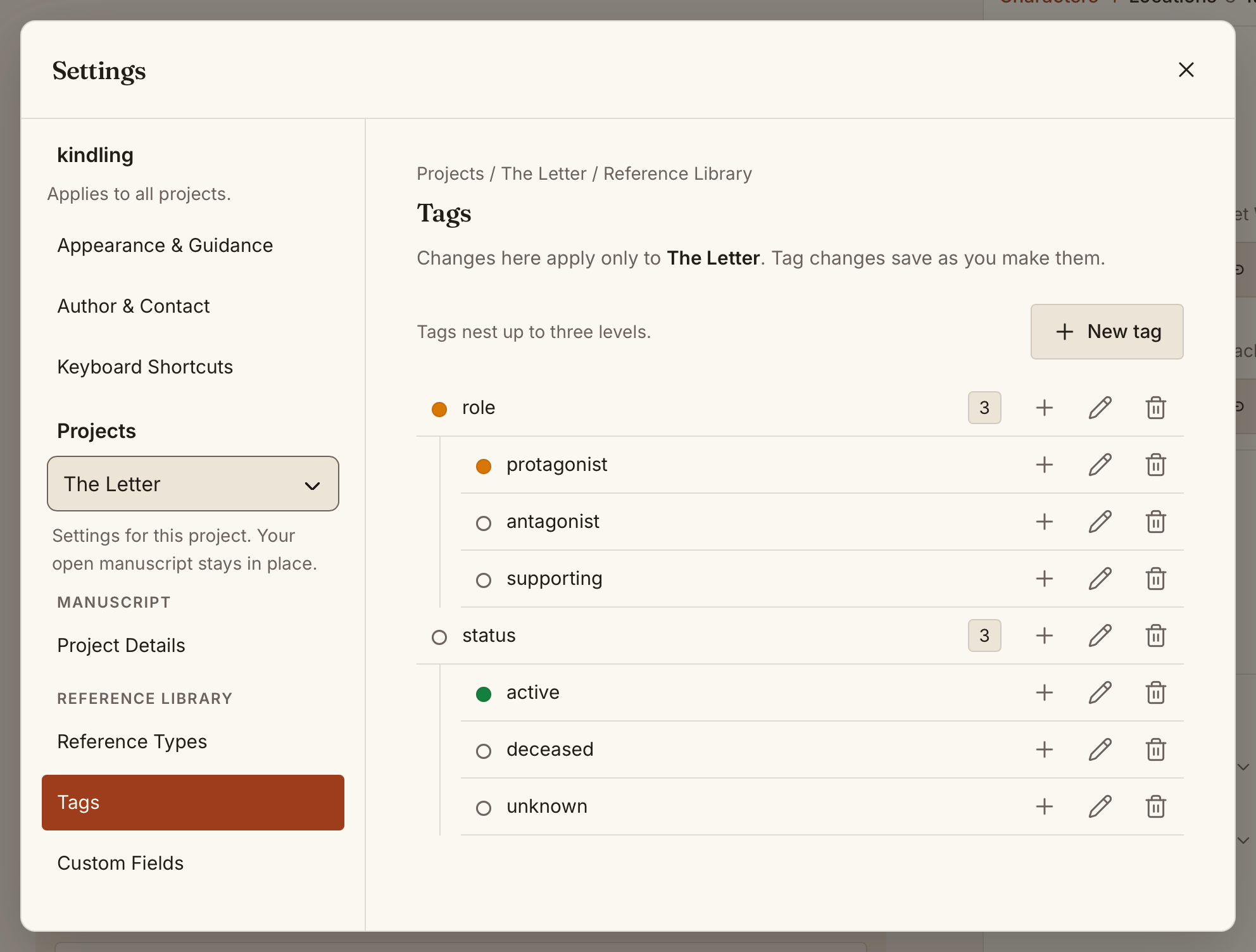
Section titled “Hierarchical Tags (v1.2+)”References support a hierarchical tagging system with up to three levels of depth. Tags can have colours and are managed project-wide from the Tag Manager (under File → Settings → Tags).
Example hierarchy:
role/ protagonist antagonist supportingstatus/ active deceased unknownApply tags to any reference and use saved filters to quickly find references matching specific criteria — for example, all active characters with role/protagonist.
Smart Reference Detection (v1.2+)
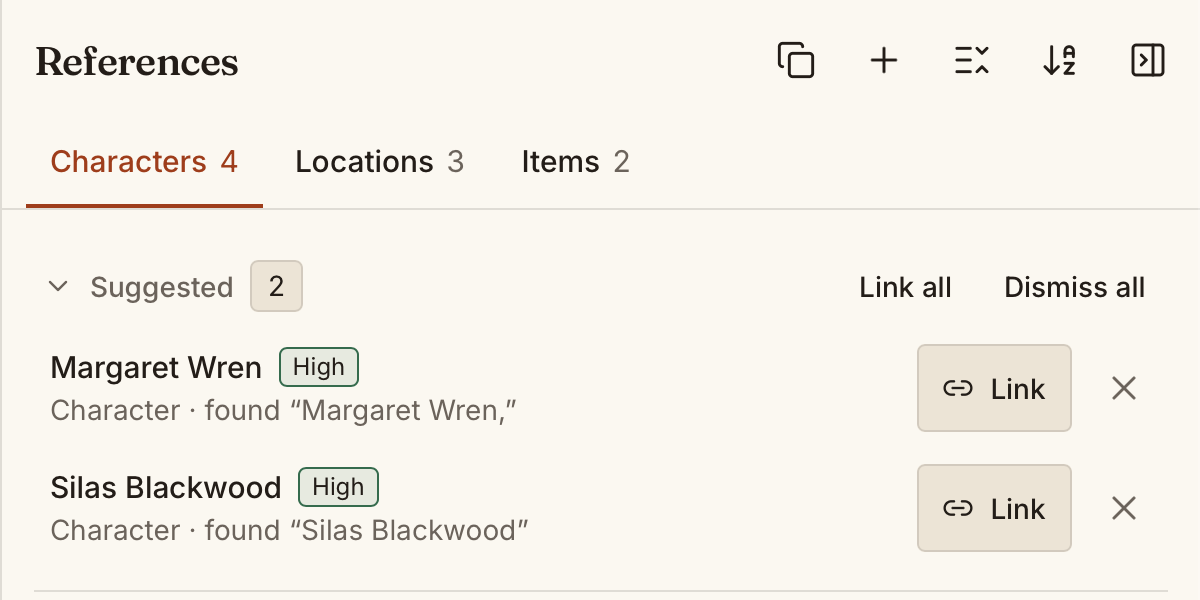
Section titled “Smart Reference Detection (v1.2+)”kindling’s non-AI reference detection engine can scan your prose for character, location, and item names. When matches are found, suggestions surface automatically in the References panel so you can link them with one click.
Smart detection runs on demand — it doesn’t modify your prose or add anything automatically. It simply surfaces references you may have mentioned but haven’t explicitly linked to a scene yet.
Reference Type Settings
Section titled “Reference Type Settings”Open File → Settings → Reference Types and choose the project to configure. Disabling a type hides its tab and keeps its existing entries. See Settings for saving changes.
Copying References Between Projects
Section titled “Copying References Between Projects”Bring your characters, locations, and story notes into another book:
- Open the project that should receive the references.
- Choose Copy references from project… in the References panel header, then select the source project.
- Select the references or categories you want. Everything starts selected; searching does not clear hidden selections.
- Review the preview and choose Copy references. Possible duplicates are skipped unless you choose Keep both.
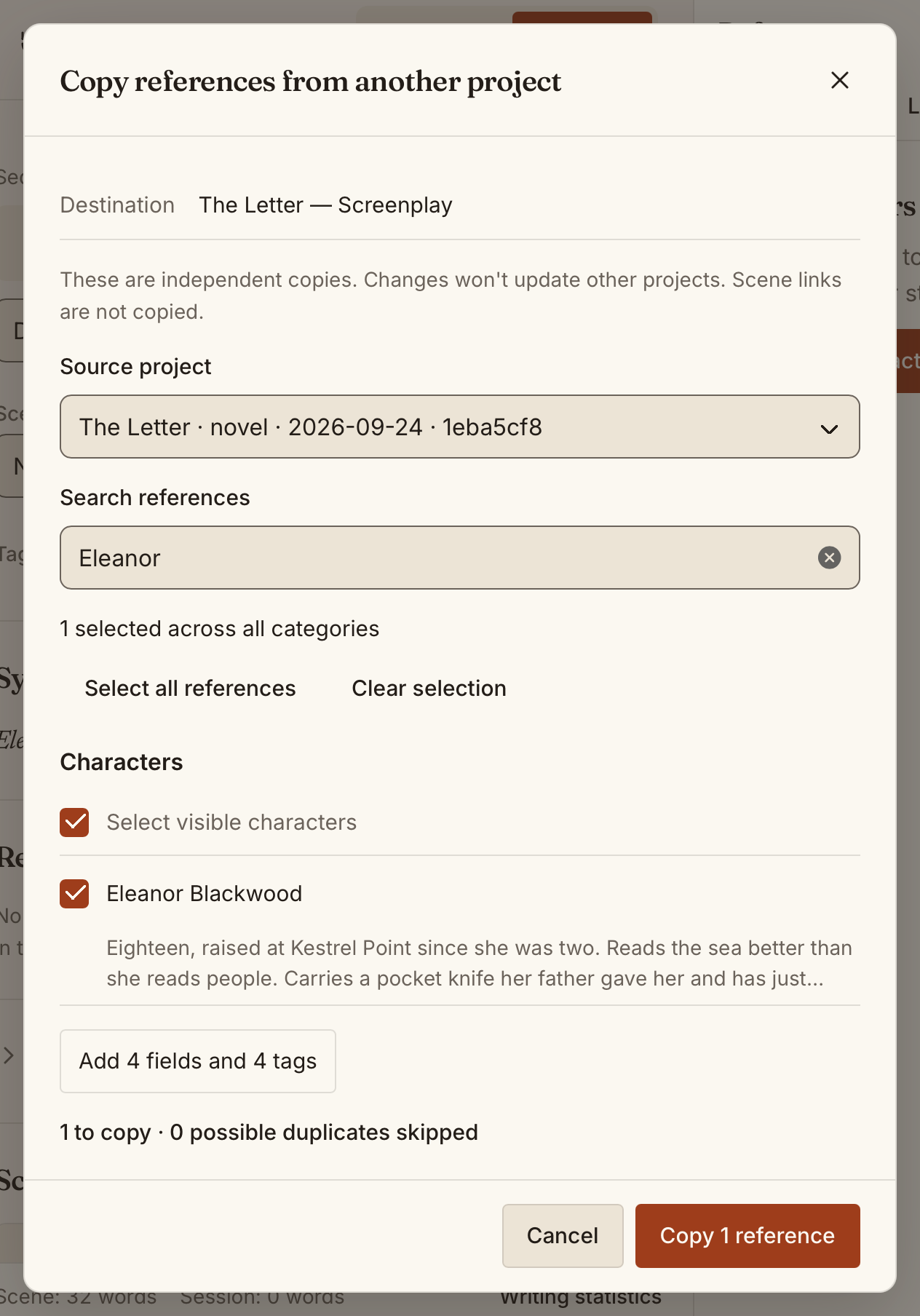
Copies include descriptions, notes, custom fields, and tags. Scene links and manuscript text stay in the source project. Existing references are never overwritten.
Each copy belongs to its book. Changes in one project do not update another. Review your selection carefully: there is no batch undo.
References from Import
Section titled “References from Import”When you import a project, kindling imports reference data where the format supports it:
| Format | Characters | Locations | Items | Objectives | Orgs |
|---|---|---|---|---|---|
| Plottr | ✓ | ✓ | — | — | — |
| Scrivener | ✓ | ✓ | — | — | — |
| Markdown | — | — | — | — | — |
| yWriter | ✓ | ✓ | ✓ | — | — |
| Longform/Obsidian | ✓ | ✓ | ✓ | ✓ | ✓ |
| novelWriter | ✓ | ✓ | ✓ | ✓ | ✓ |
Longform/Obsidian and novelWriter also support Timelines and Notes. See the format guides for how notes are classified and linked.
See Importing Projects for details on how each format handles references.