
Settings
Kindling has two layers of settings: app-wide settings that apply across every project, and project-specific settings for individual manuscripts.
App Settings
Section titled “App Settings”App settings control your author information and appearance preferences. Open them from the main menu → Kindling Settings (macOS) or File → Settings (Windows/Linux).
Author & Contact
Section titled “Author & Contact”Used on exported title pages (DOCX):
| Setting | Used In |
|---|---|
| Author name | DOCX title page |
| Contact address (two lines) | DOCX title page |
| Phone | DOCX title page |
| DOCX title page |
Appearance
Section titled “Appearance”| Setting | Options | Description |
|---|---|---|
| Theme | Light, Dark, System | Controls the app colour scheme. System follows your OS preference. |
Project Settings
Section titled “Project Settings”Project settings customise metadata for a single project. Open them from the project toolbar.
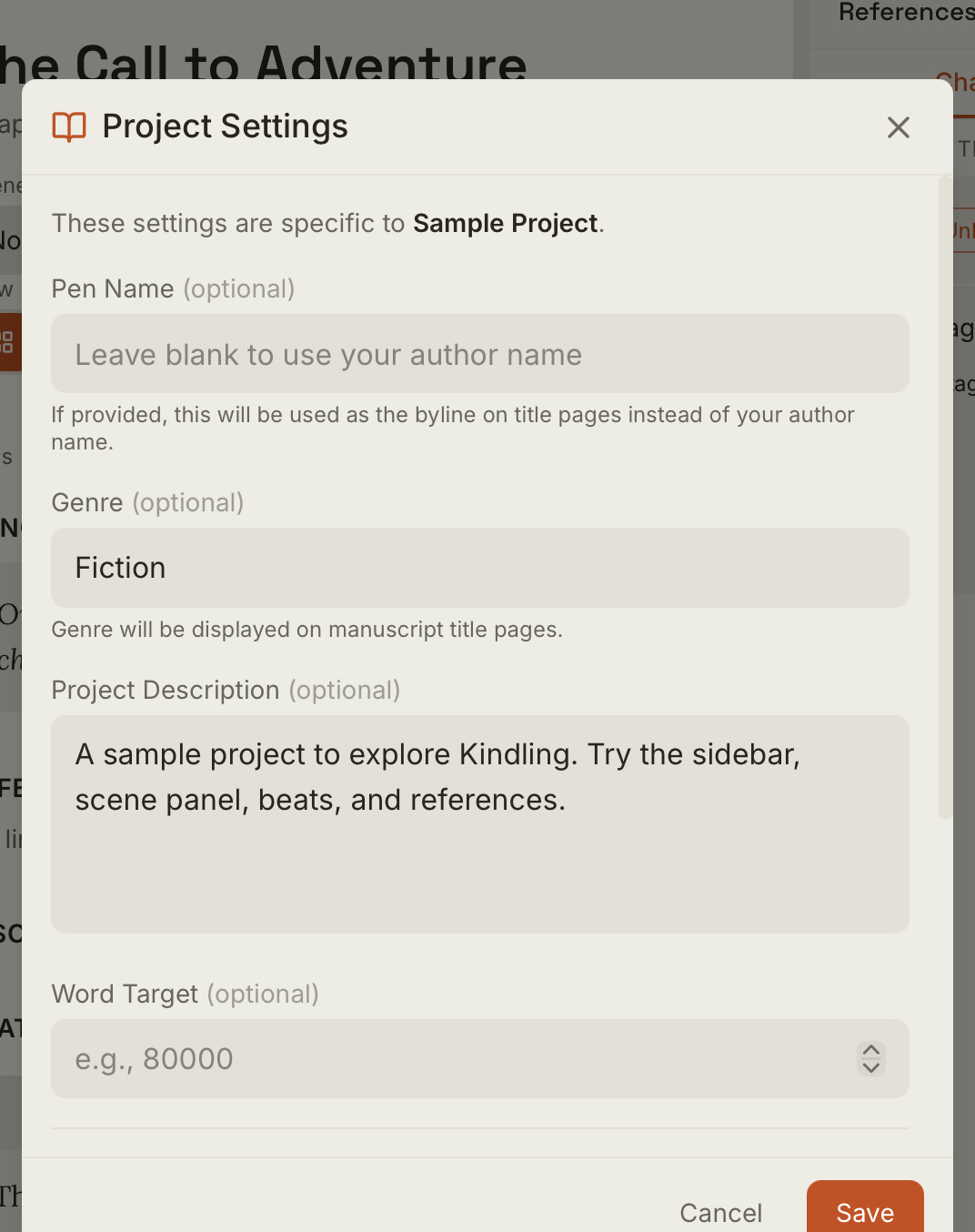
| Setting | Description |
|---|---|
| Pen name | Overrides the app-level author name for this project’s exports |
| Genre | Included in EPUB metadata |
| Project description | Included in EPUB metadata |
| Word target | Helps track drafting progress |
Reference Type Settings
Section titled “Reference Type Settings”Reference types are managed from the References panel settings cog (⚙). You can enable or disable reference types per project:
- Characters
- Locations
- Items
- Objectives
- Organizations
Disabling reference types you don’t need keeps the panel uncluttered.
Tag Manager (v1.2+)
Section titled “Tag Manager (v1.2+)”The Tag Manager is also accessible from the References panel settings. Use it to create, rename, recolour, and organise the hierarchical tags available for references in this project. Tags you define here can be applied to any reference and used in saved filter views.
Export Impact
Section titled “Export Impact”Settings flow into exports at several points:
| Setting | Affects |
|---|---|
| Author name / pen name | DOCX title page |
| Contact info | DOCX title page |
| Genre | EPUB metadata |
| Project description | EPUB metadata |
| Scene status (Draft/Revised/Final) | Scene filtering and export inclusion |
| Scene type (Notes/ToDo/Unused) | Whether the scene is included in exports |
See Exporting Projects for full export format details.
Where Are My Files?
Section titled “Where Are My Files?”Project data
Section titled “Project data”Kindling stores all your projects in a single SQLite database in the app’s data directory:
| Platform | Location |
|---|---|
| macOS | ~/Library/Application Support/com.kindlingwriter.app/kindling.db |
| Windows | %APPDATA%\com.kindlingwriter.app\kindling.db |
| Linux | ~/.local/share/com.kindlingwriter.app/kindling.db |
This one file contains all your projects, chapters, scenes, beats, references, and settings.
Backing up your projects
Section titled “Backing up your projects”Copy kindling.db to a safe location — an external drive, cloud folder, or version control repository. Kindling doesn’t need to be closed to copy the file; SQLite handles concurrent reads safely.
For automatic backups, point your backup tool (Time Machine, Backblaze, rsync, etc.) at the app data directory.
Moving projects between computers
Section titled “Moving projects between computers”Copy kindling.db to the same path on the new machine (or anywhere in the app data directory). Kindling will load all your projects on next launch.
If you’re moving from one operating system to another, the file format is the same — SQLite databases are cross-platform.
Your source files
Section titled “Your source files”Imported source files (.pltr, .yw7, .scriv, .md) are not copied into Kindling — the app stores a path to their original location. If you move a source file, Kindling will show a “source file not found” warning when you try to sync or reimport. Either move the file back, or start a fresh import from the new path.